Contacts
Contacts are people linked to a student — typically parents, guardians, or emergency contacts. Each contact can optionally receive the same notifications the student receives (attendance updates, messages, form submissions, etc.).
The Contacts tab on a student's profile is only visible to school admins. Teachers and parents do not have access to manage contacts.
Viewing a Student's Contacts
Open a student's profile and go to the Contacts tab.
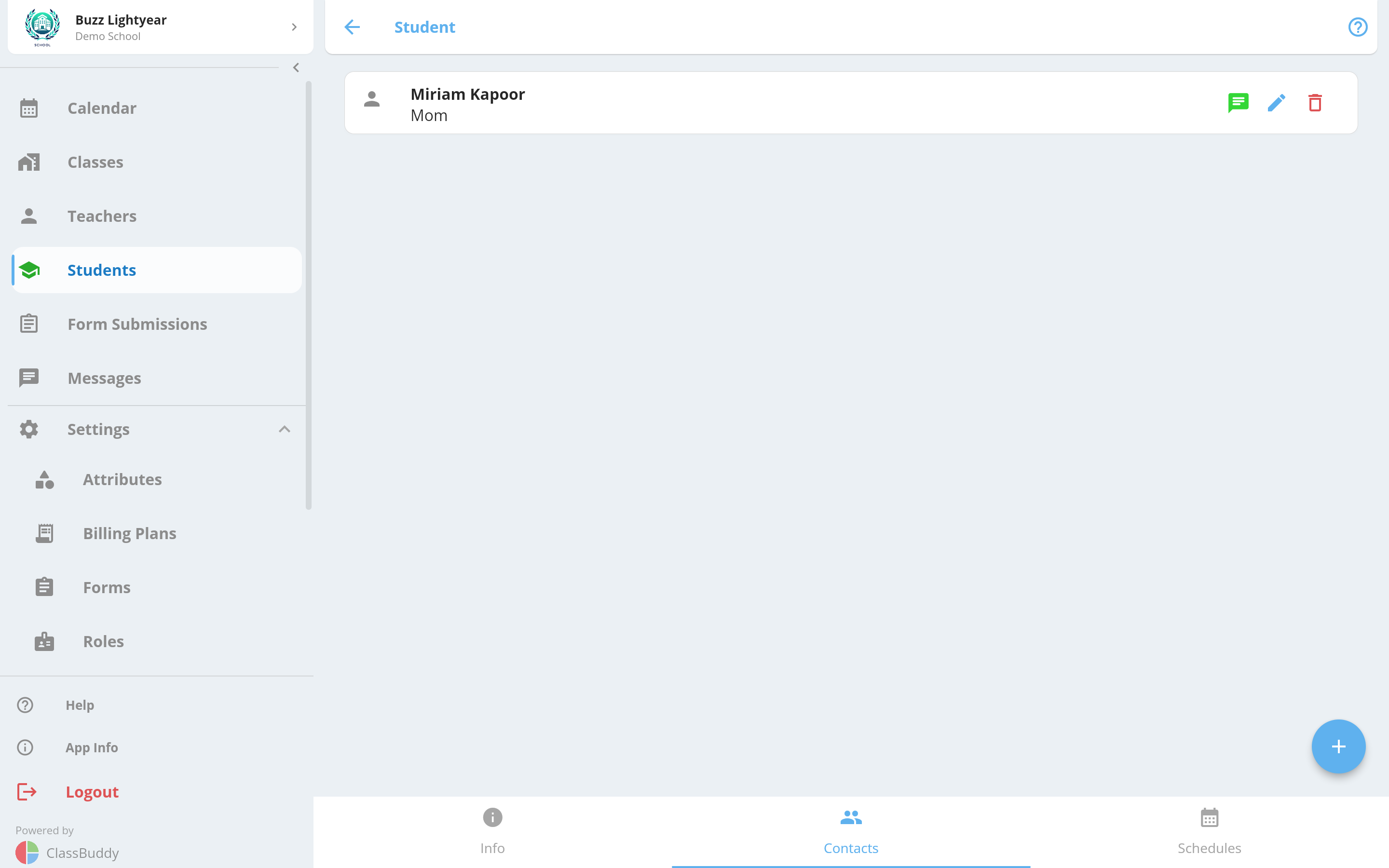
Each contact card shows:
- The contact's full name
- Their alias (e.g. "Mom", "Dad", "Guardian")
Tap a contact card to open the full detail view.
Adding a Contact
From the Contacts tab, tap the + button.
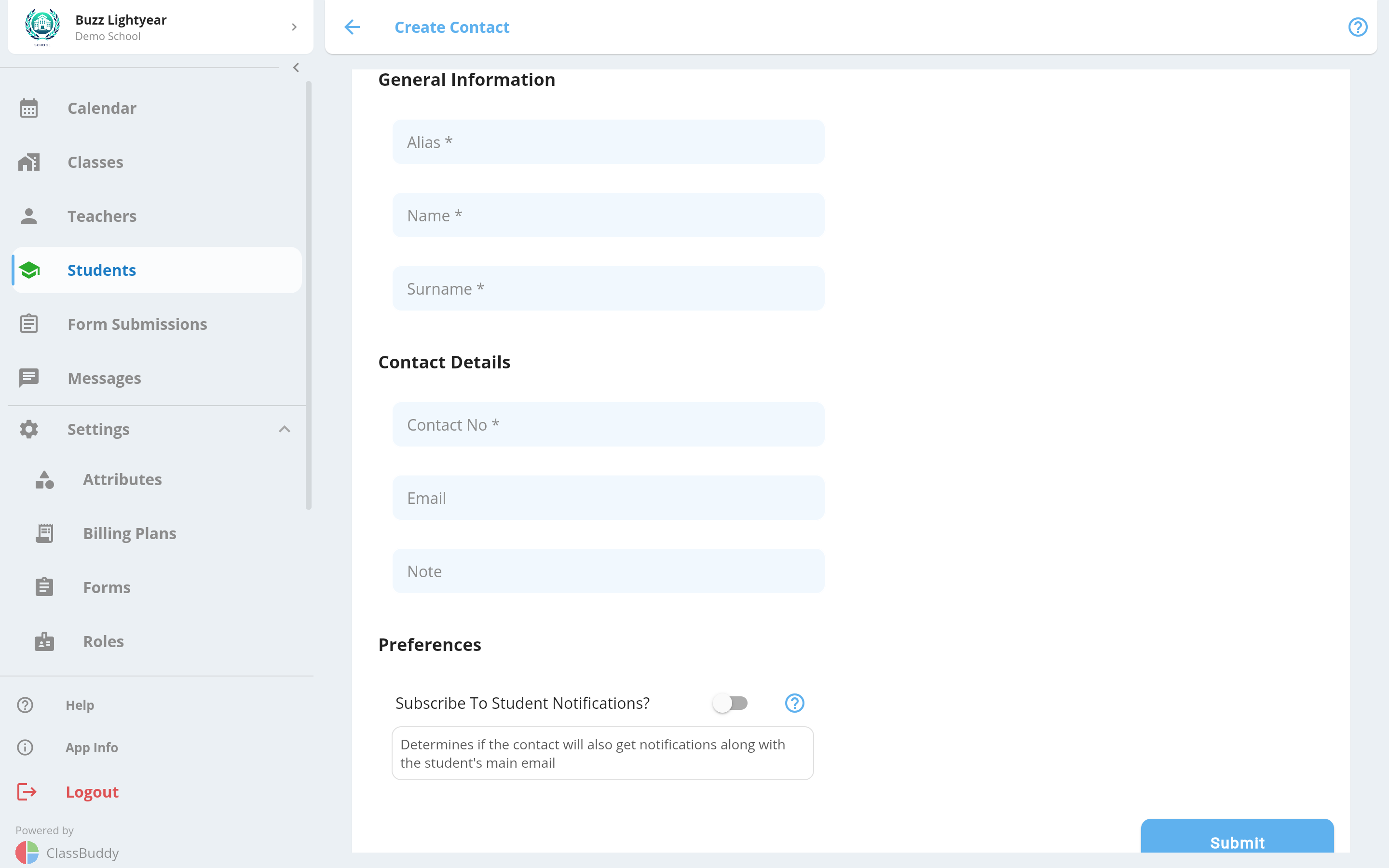
Fill in the contact details:
General Information
| Field | Required | Description |
|---|---|---|
| Alias | Yes | A short label describing the relationship — e.g. "Mom", "Dad", "Uncle James", "Emergency Contact". Displayed throughout the app to identify the contact at a glance. |
| First Name | Yes | Contact's first name |
| Last Name | Yes | Contact's last name |
Contact Details
| Field | Required | Description |
|---|---|---|
| Contact Number | Yes | Phone number for this contact |
| No | Email address. If provided, they can receive email notifications. | |
| Note | No | Any internal notes about this contact (e.g. "Available weekday mornings only") |
Preferences
| Field | Description |
|---|---|
| Subscribe to notifications | When on, this contact receives the same notifications as the student — including attendance updates, messages from the school, and form submission confirmations. When off, notifications go to the student only. |
Enable Subscribe to notifications for parents or guardians who should stay informed about their child's attendance and school communications. Leave it off for emergency contacts who only need to be reached directly.
Tap Submit to save the contact.
Viewing Contact Details
Tap any contact in the list to open their detail page, which shows:
- Alias and full name
- Email address and phone number
- Any notes
- Whether they are subscribed to notifications
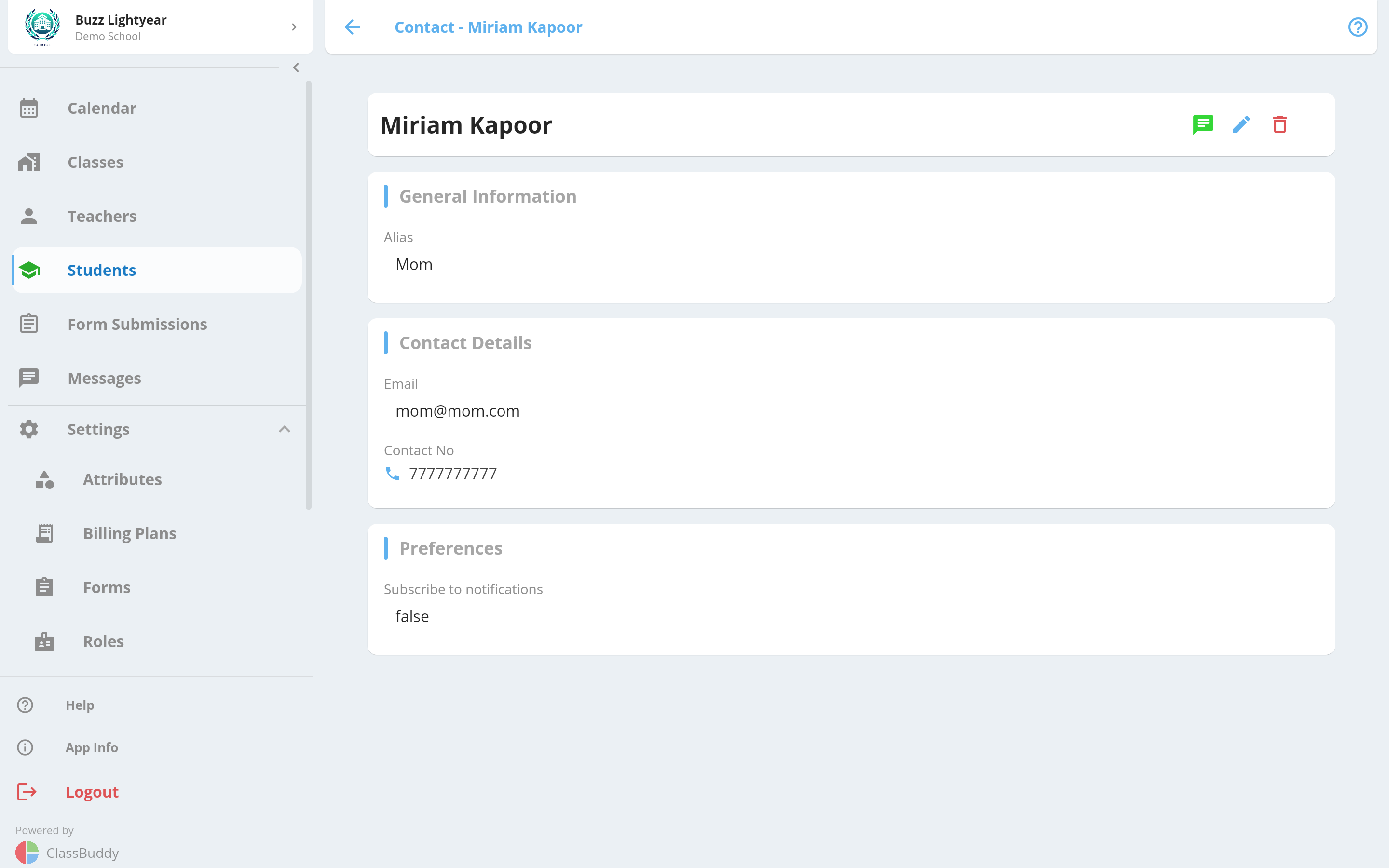
From this page you can message, edit, or delete the contact using the menu (three dots).
Editing a Contact
From either the contact list or the contact detail page, tap the menu (three dots) and select Edit.
Update any fields and tap Submit. All fields including the notification preference can be changed.
Deleting a Contact
From the contact list or detail page, tap the menu (three dots) and select Delete. Confirm the deletion.
Deleting a contact is permanent. If the contact was subscribed to notifications, they will stop receiving them immediately.
Messaging a Contact
From the contact list or detail page, tap the menu (three dots) and select Message to open a message compose screen addressed to that contact.
This requires the message:send permission. See Roles & Permissions for details.
How Contact Notifications Work
When Subscribe to notifications is enabled on a contact, they receive a copy of every notification sent to the student. This is controlled at the setting group level — make sure Include Contacts in Student notifications? is turned on under Settings > Setting Groups for this to take effect.
Both settings must be active for a contact to receive notifications:
- The contact's own Subscribe to notifications toggle is on
- The school's Include Contacts in Student notifications? setting is on
Collecting Contacts via Sign-Up Forms
Contacts can be collected at enrolment time through sign-up forms. When configuring form elements, add a Contact Group field. This creates a labelled group of fields (alias, name, email, phone) that the parent fills in during sign-up, and the resulting contact is automatically linked to the student.
See Forms for instructions on adding contact groups to a form.
Bulk Importing Contacts
Contacts can be bulk imported from a CSV file. Use the Contacts upload type in the bulk import tool.
The CSV format requires the following columns:
| Column | Description |
|---|---|
first_name | Student's first name |
last_name | Student's last name |
email | Student's email |
contact_alias | Alias for the contact (e.g. "mom") |
contact_first_name | Contact's first name |
contact_last_name | Contact's last name |
contact_email | Contact's email |
contact_number | Contact's phone number |
Example row:
Amelia,Chung,amelia@school.com,mom,Laura,Steyn,laura@email.com,0821234567
See Upload Data for instructions on running a bulk import.