Students
View Students
Access the student list via Menu > Students. You should see a screen like below.
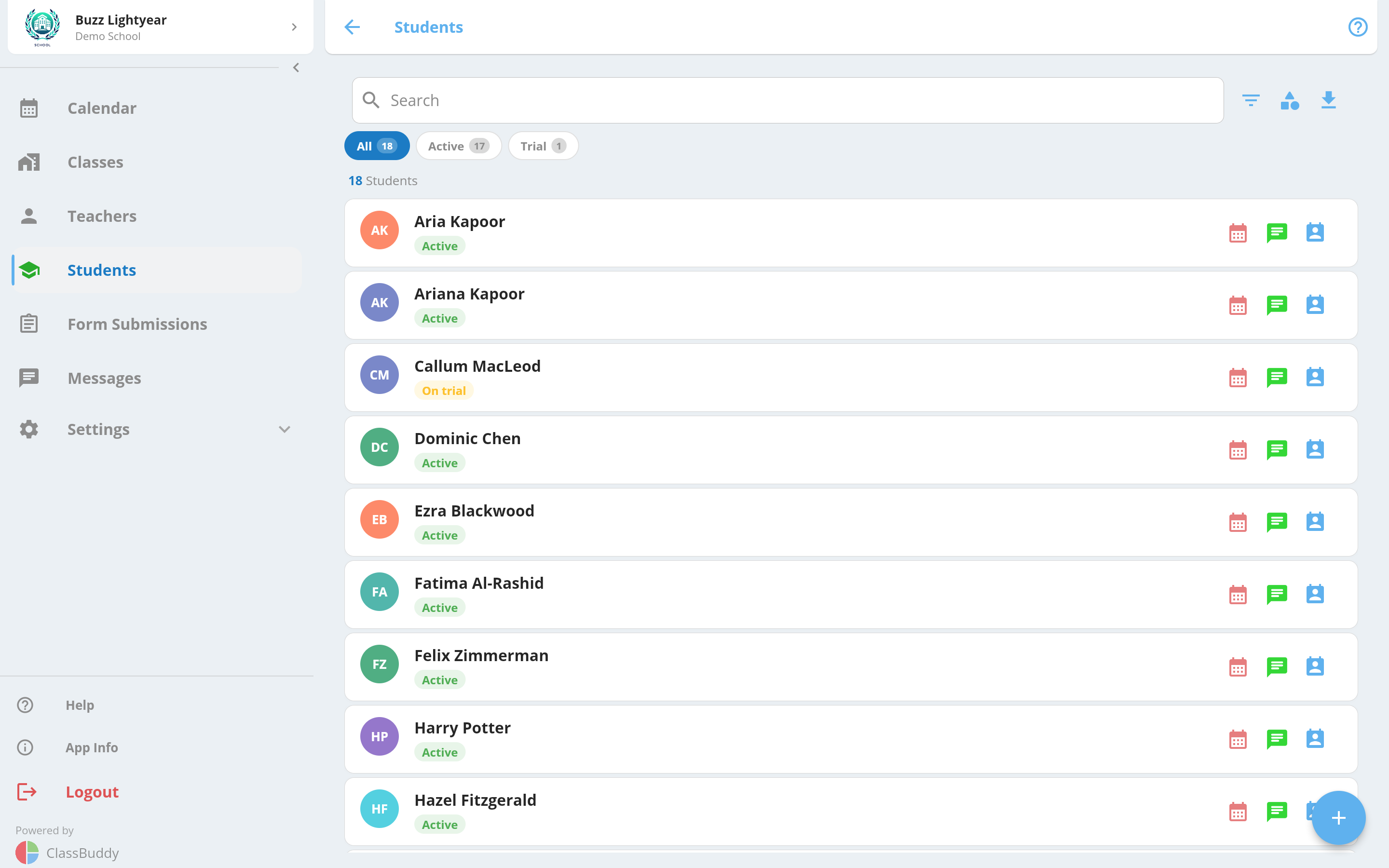
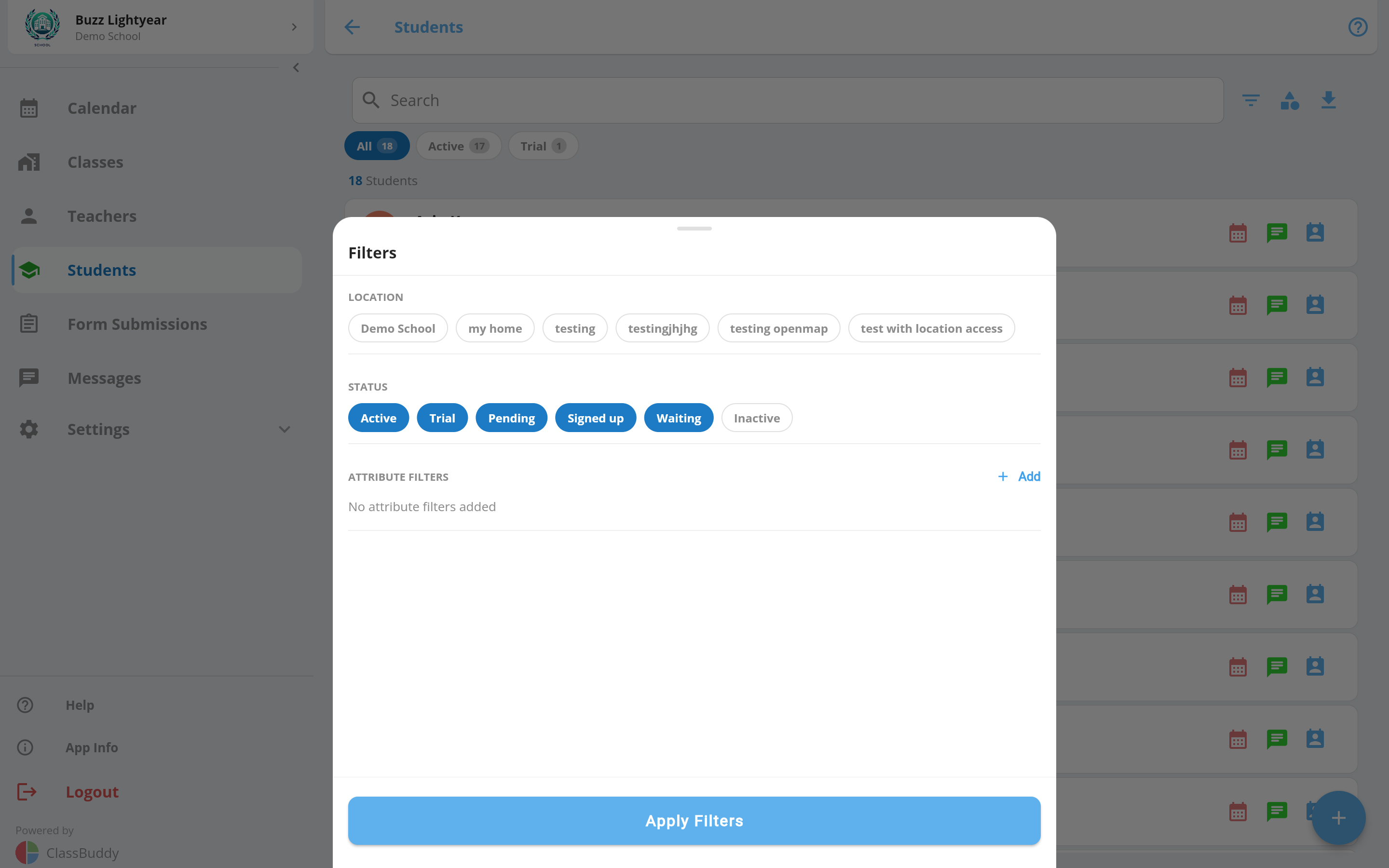
The screen will show all students excluding inactive students by default. Click on the filter icon to filter students by address, status or an attribute.
Search a student by their name by typing the name in the search bar at the top.
Click on the download icon in the top right corner to download student list in excel format.
Create a new student
Create a new student by clicking the + button on the students page.
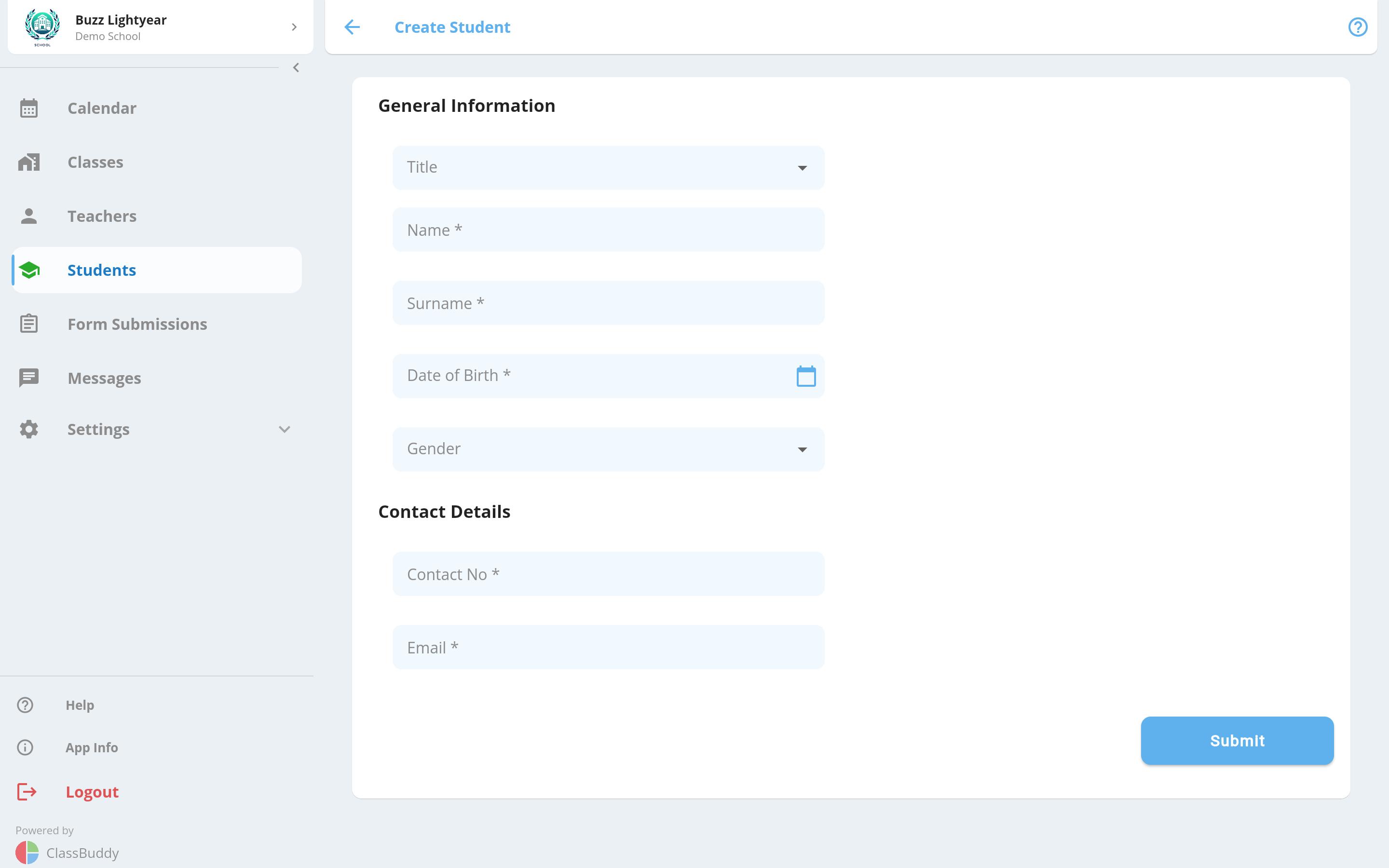
Enter the required/optional fields to create a new student in the school. The fields are pretty self-explanatory.
Student Profile view
Click on any student row to view complete student information as below.
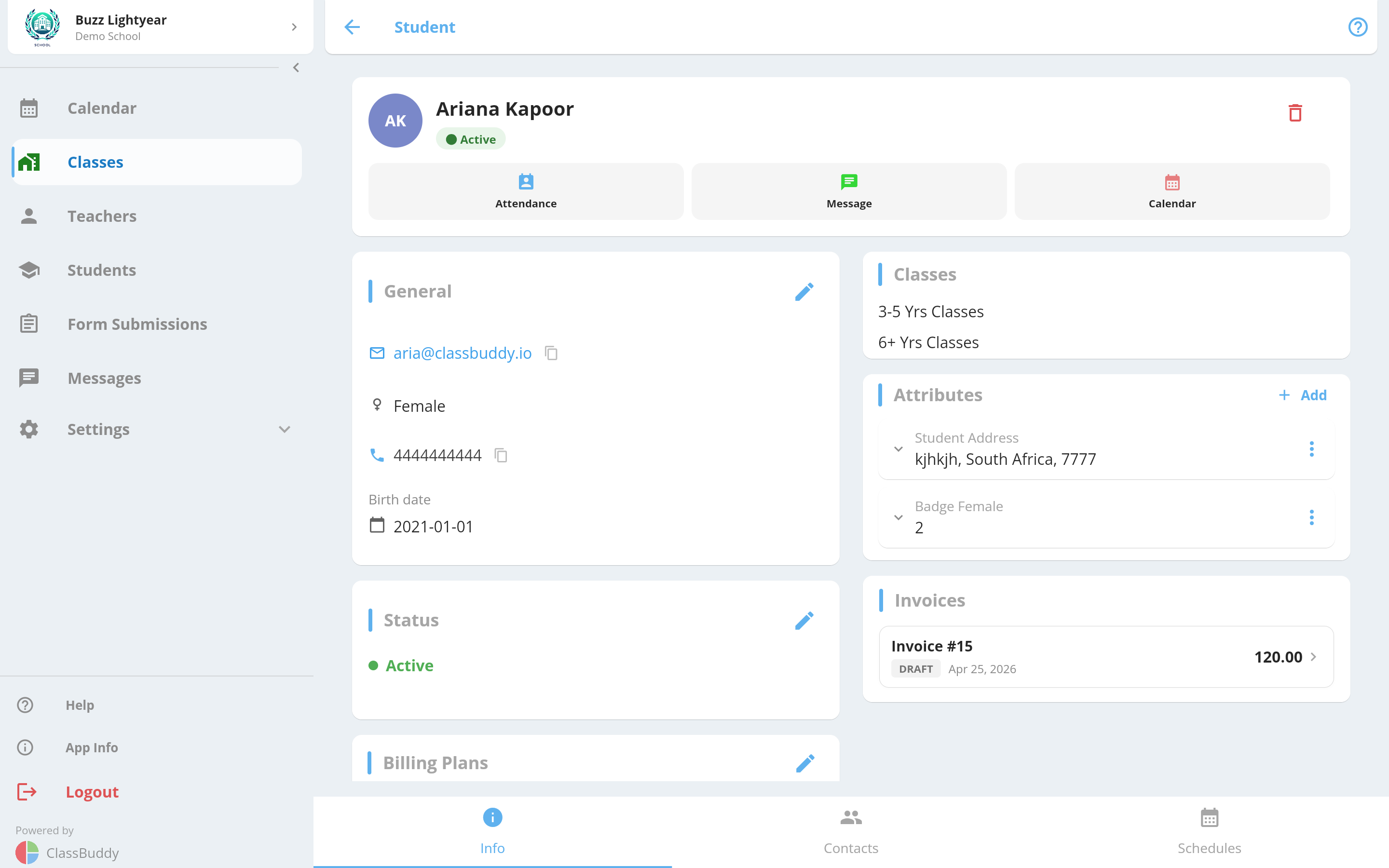
On the student page, you will see the below information:
- General details
- Student Status
- Student Attributes
- Billing plans linked to the student
- Invoices
- Attendance summary
- Classes linked to the student
You will also see tabs for student contacts and student schedules. Now, lets dive into the above one by one.
Student General details
Under general details, the below information is displayed:
- Full name
- Gender
- Contact number
- Date of birth
The menu (3 dots) provides links for the following:
- Edit student information
- Delete student
- See student calendar
- Message a student
Student Status
Student status can be edited by clicking on the menu button next to status and selecting the edit option. A note can be attached with any status update.
Here is a typical flow of student status:
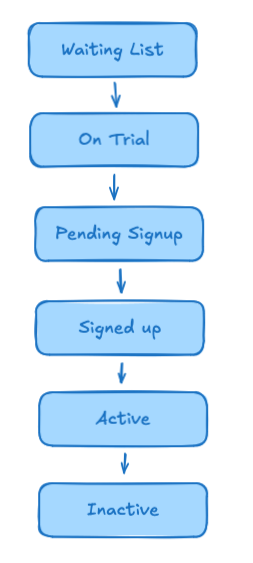
| Status | Description |
|---|---|
| Active | Student is enrolled and attending classes |
| Inactive | Student is not currently enrolled |
| Signed Up | Student has completed signup but is not yet linked to a class or schedule |
| On Trial | Student is attending a trial session |
| Pending Signup | Student has been invited to complete a signup form |
| Waiting List | Student is waiting for a spot in a class |
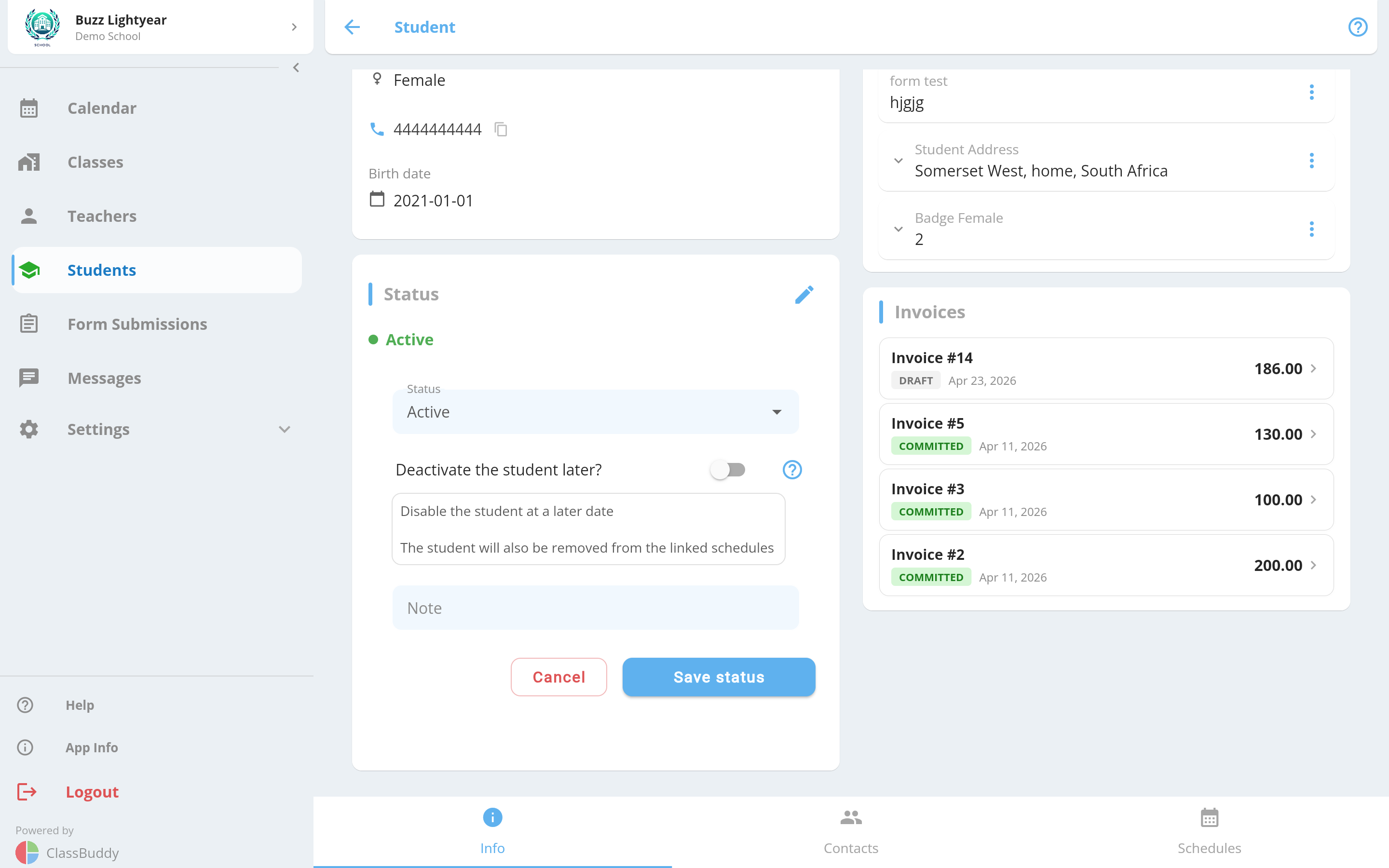
Active status
With active status, there is also an option to disable the student at a later date. On that date, the student will be disabled and delinked from all the schedules.
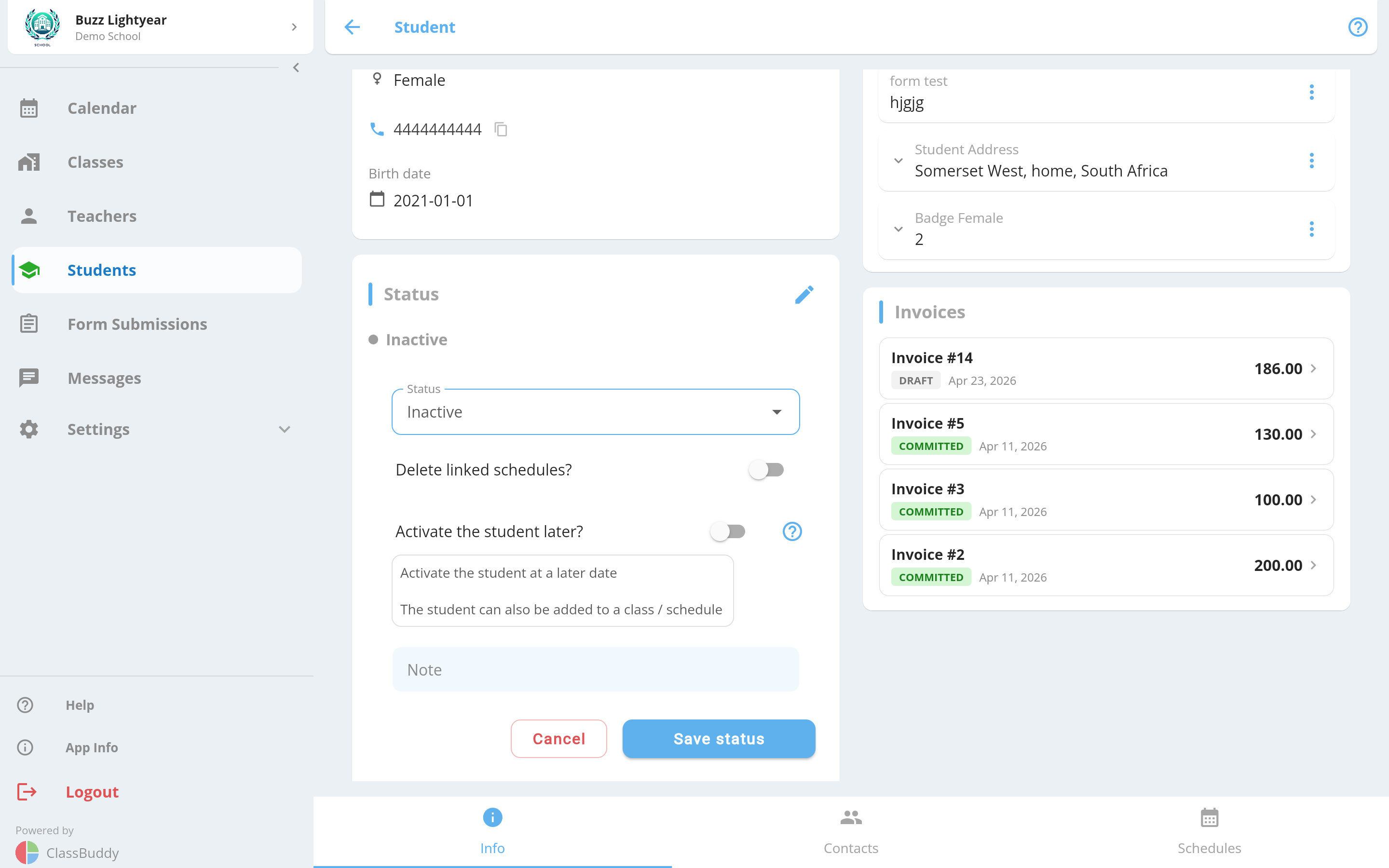
Inactive status
While setting the student to inactive, you can choose to activate the student at a later date and attach them to a class/schedule.
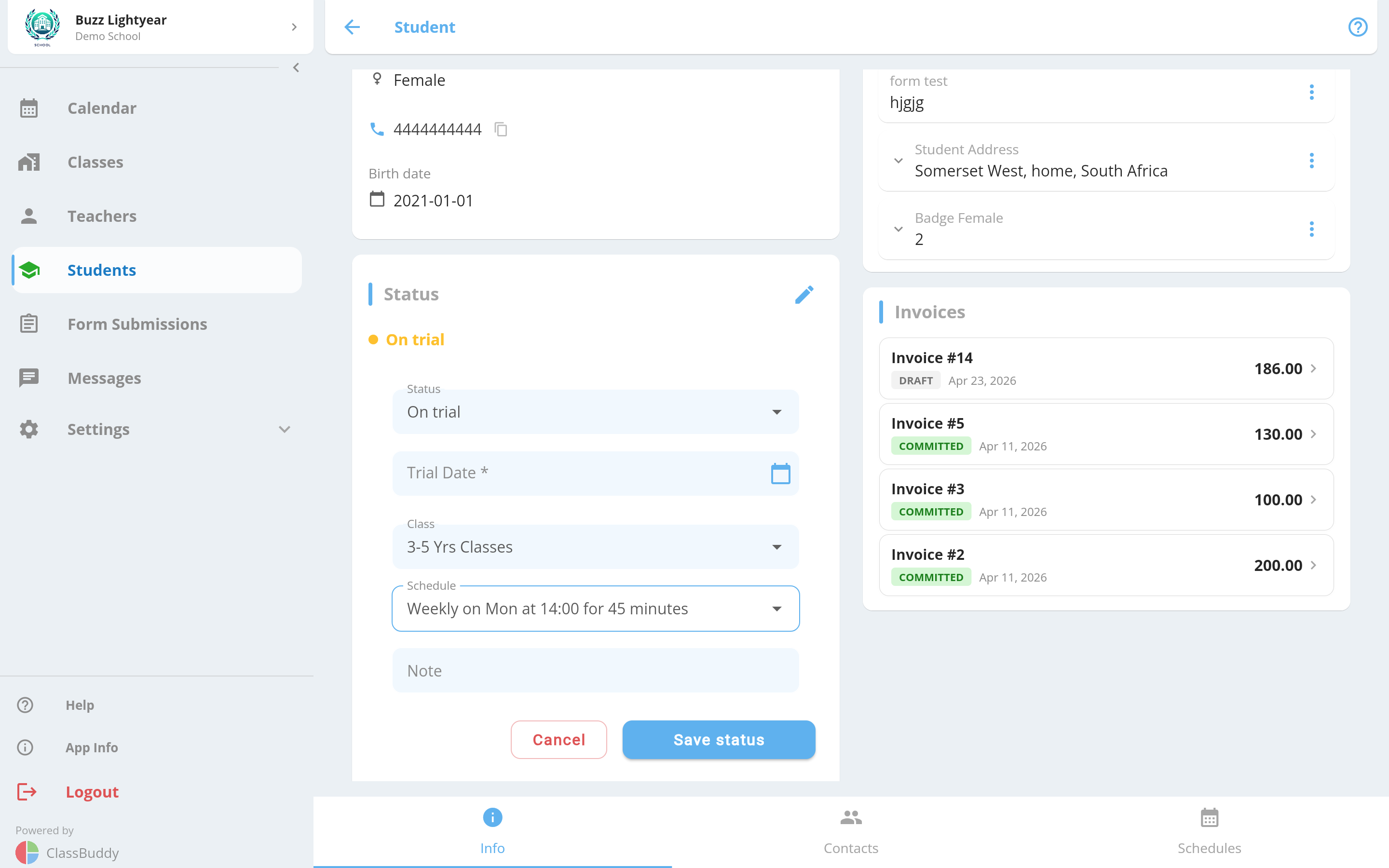
On Trial
With this status the teacher/admin can:
- Choose a trial date
- Choose the class/schedule for the trial
- Add a note
This will also send a notification to the student via email.
Pending Signup
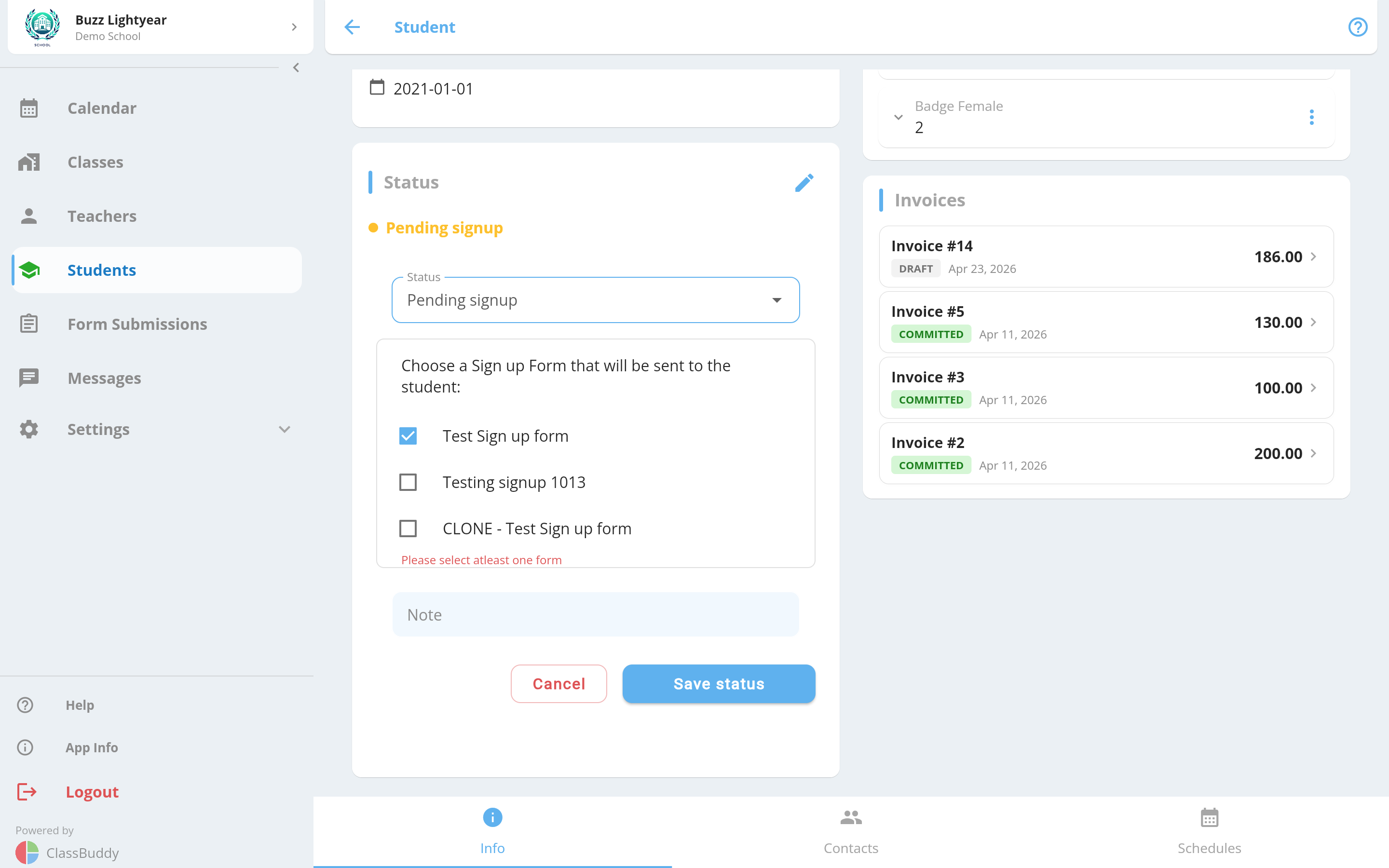
With pending signup, the school can choose to send one or more signup forms via email to the student/parent. Select the form(s) to send before saving.
Signed Up
The student has completed the signup process but has not yet been assigned to a class or schedule. This is typically a transitional status before the admin links the student to a class.
Waiting List
The student is on the waiting list. Use this when a class is full and you want to track students waiting for a spot.
Student Attributes
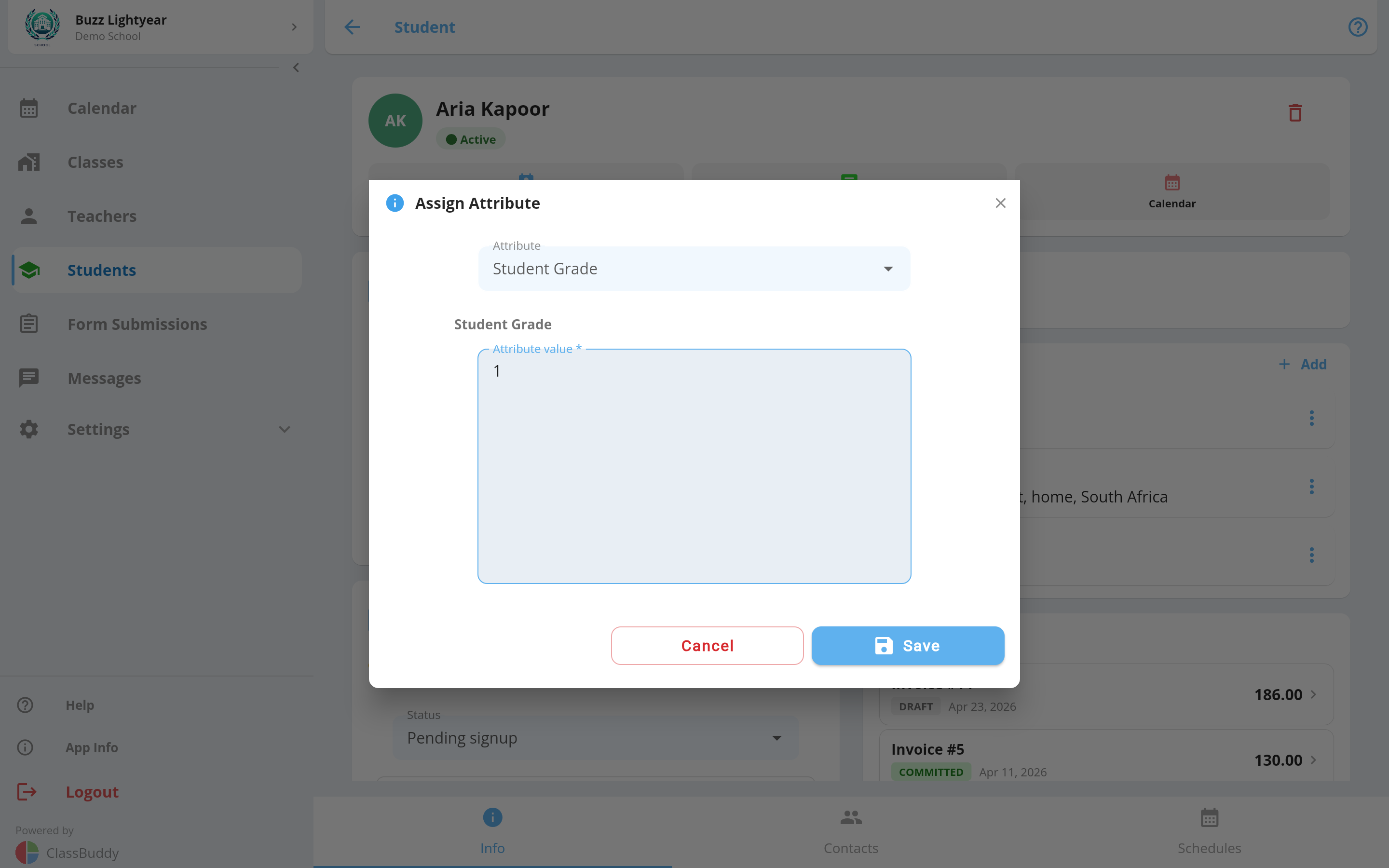
Once attributes are created under settings, they can be assigned to a student with values. On the student page, click on the Add button under attributes to add a new attribute to the student. That will bring up a screen as below. Select the required attribute, assign a value and save.
Based on the type of attribute, you can assign the select/enter a value for the attribute and save.
Assign a Billing Plan to a Student
A student's billing plan can be assigned in 3 ways:
- Via sign-up form
- Via Student Profile Page
- Via editing student Schedules
The billing plan block on the student profile shows the currently active plan, including the plan name, billing type, and cycle information.
To assign or change a billing plan from the profile, tap the edit icon on the billing plan block and select the desired option.
Student Attendance
A summary of attendance will be shown on the profile page. For schools using session-based billing plans, the summary also shows current session usage — how many sessions the student has used in the current billing cycle versus their plan limit (e.g. "4 / 8 sessions this cycle").
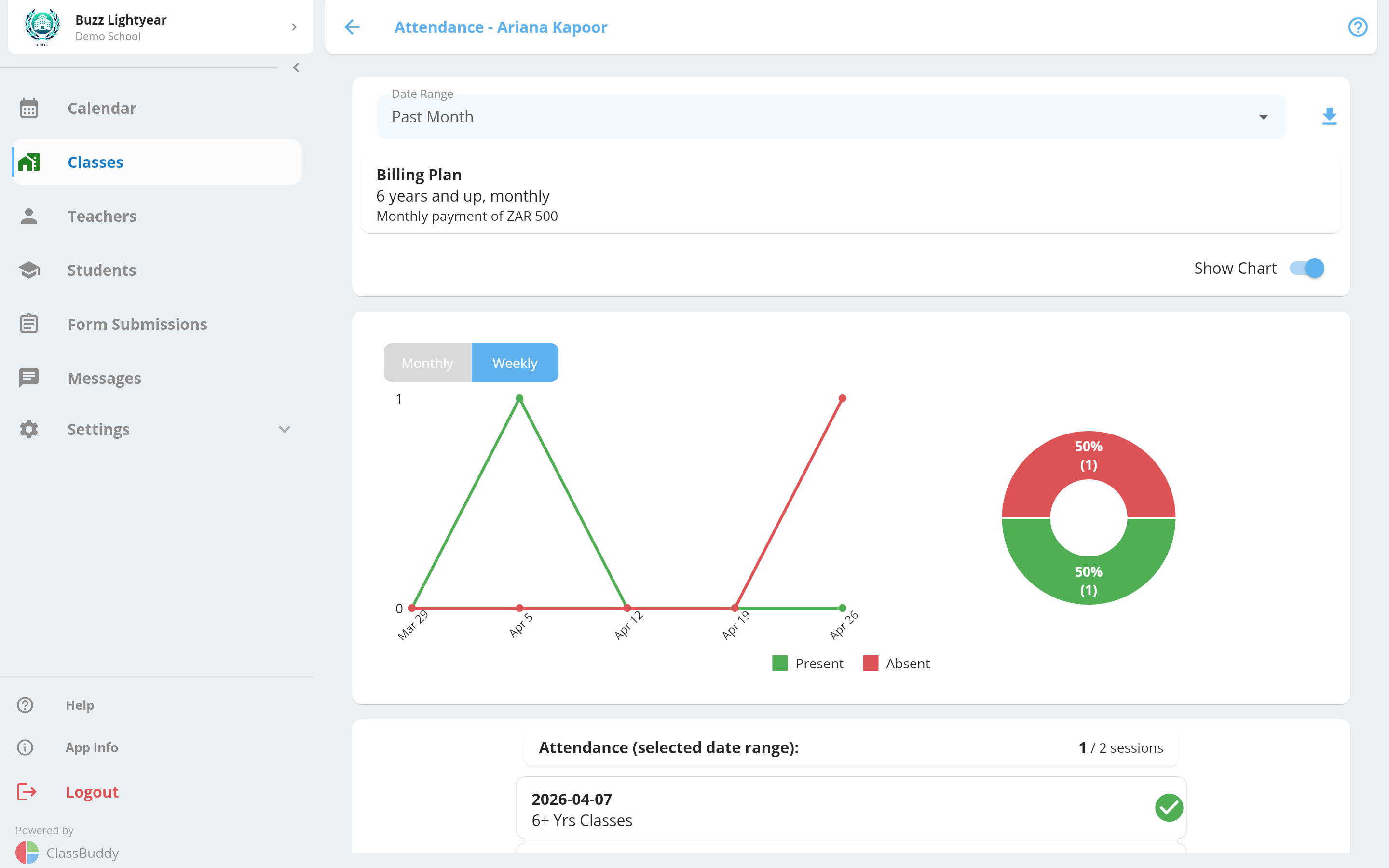
Click on View Attendance to see detailed attendance. Adjust the date range as necessary. Download the attendance report as a PDF using the download icon.
Student Classes
The classes block on the student profile shows all classes the student is enrolled in. Each entry displays the class name and the student's linked schedule(s) within that class.
Student Schedules
Student schedules can be seen in the Schedules tab on a student page. The student can be removed from the schedule using the delink icon.
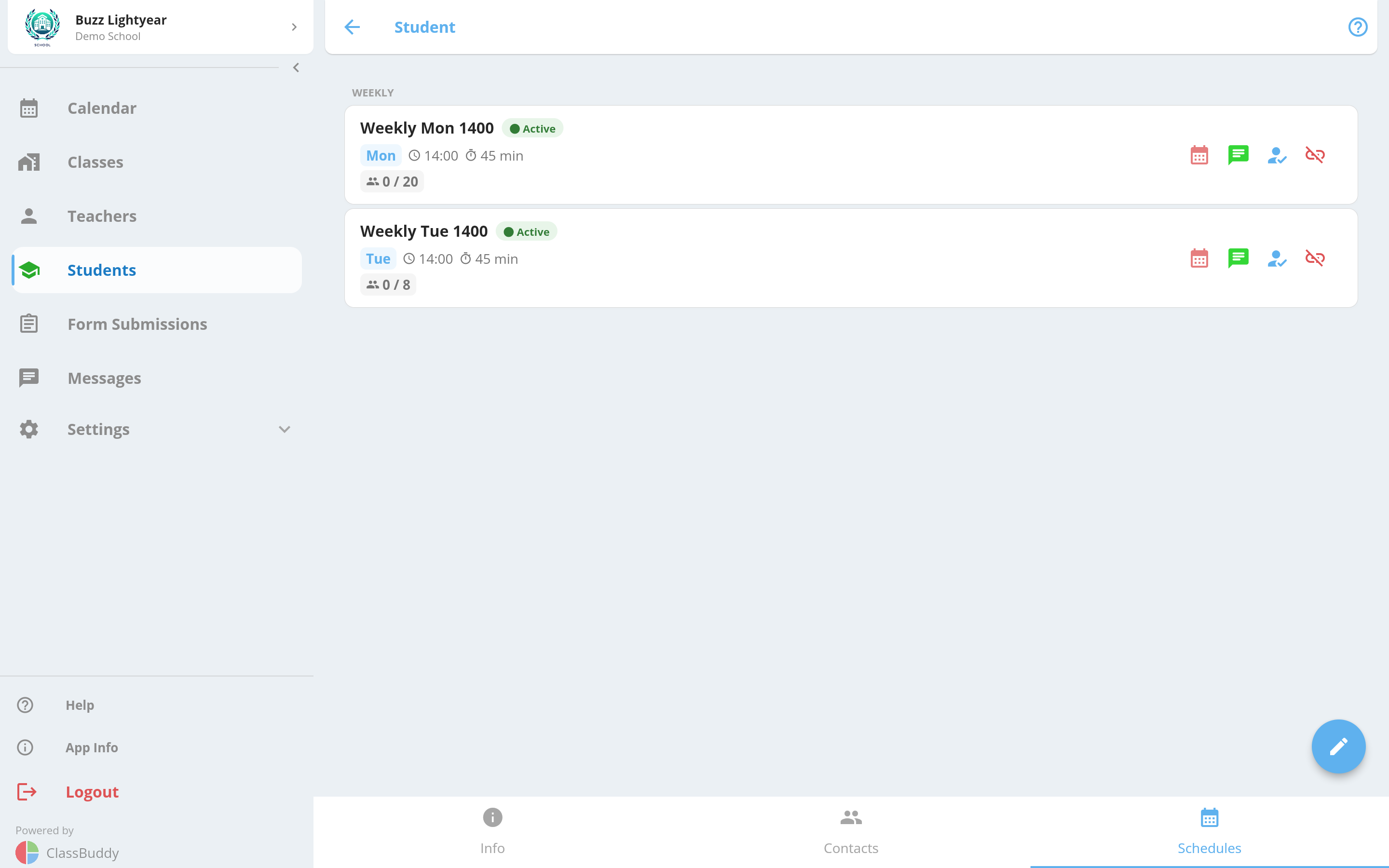
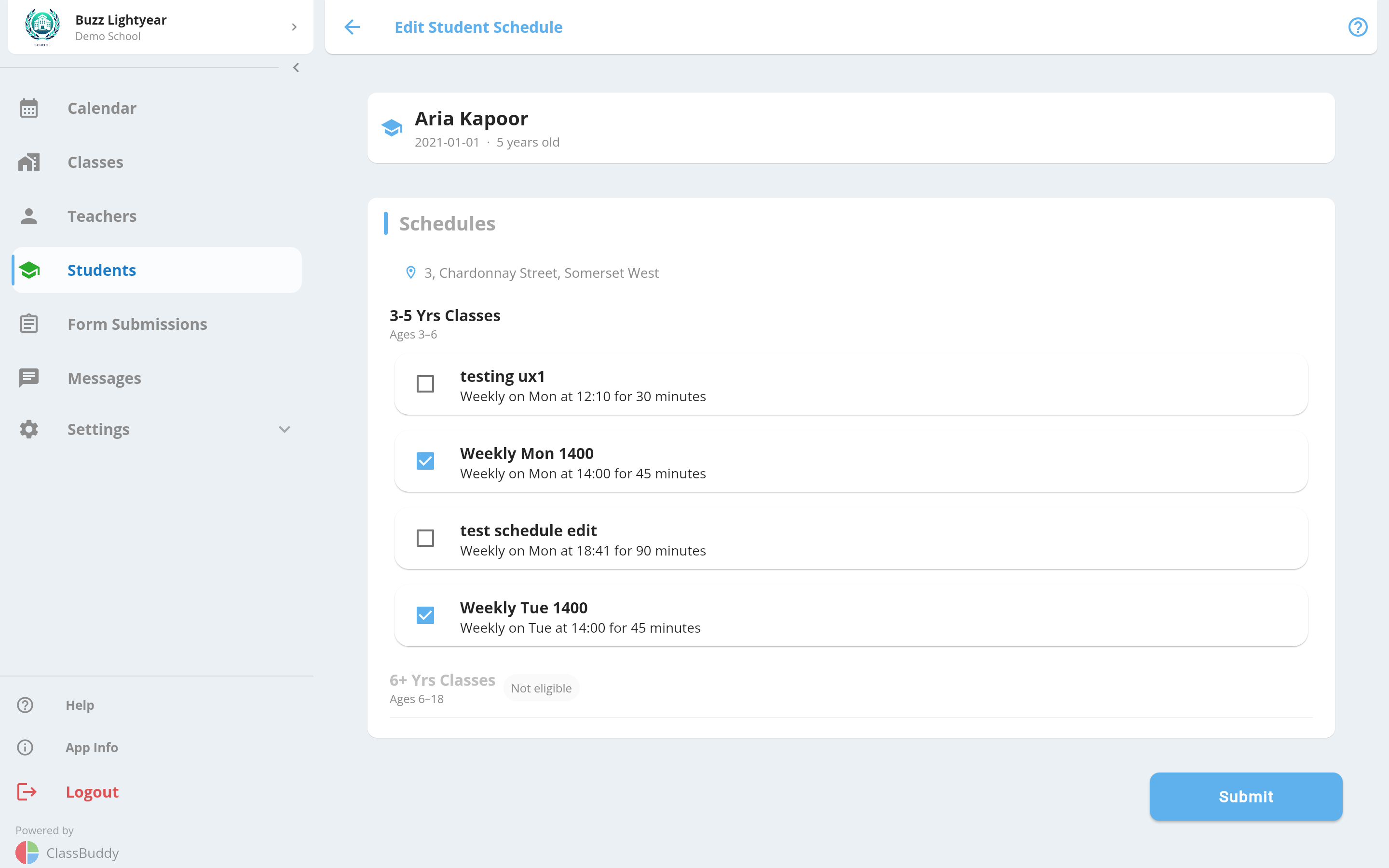
The student schedules can also be edited using the edit button (pencil icon), which will show the below screen. Note that this will also trigger Billing Plan change if the selected number of schedules are not covered in the current billing plan linked to the student.
Student Contacts
Go to the Contacts tab on a student's profile to view, add, edit, and delete contacts such as parents and guardians. See the full Contacts guide for details.