Invoicing
ClassBuddy's built-in invoicing lets you create invoices for students, record payments against them, and send account statements. Before using invoicing, ensure ClassBuddy Invoicing has been activated for your setting group. See Setting Groups for setup details.
Invoicing is only available to school accounts. The following permissions control access:
invoice:create— create and send invoicesinvoice:commit— commit draft invoicesinvoice:pay— record and manage paymentsinvoice:void— void draft invoices
Student Invoices Block
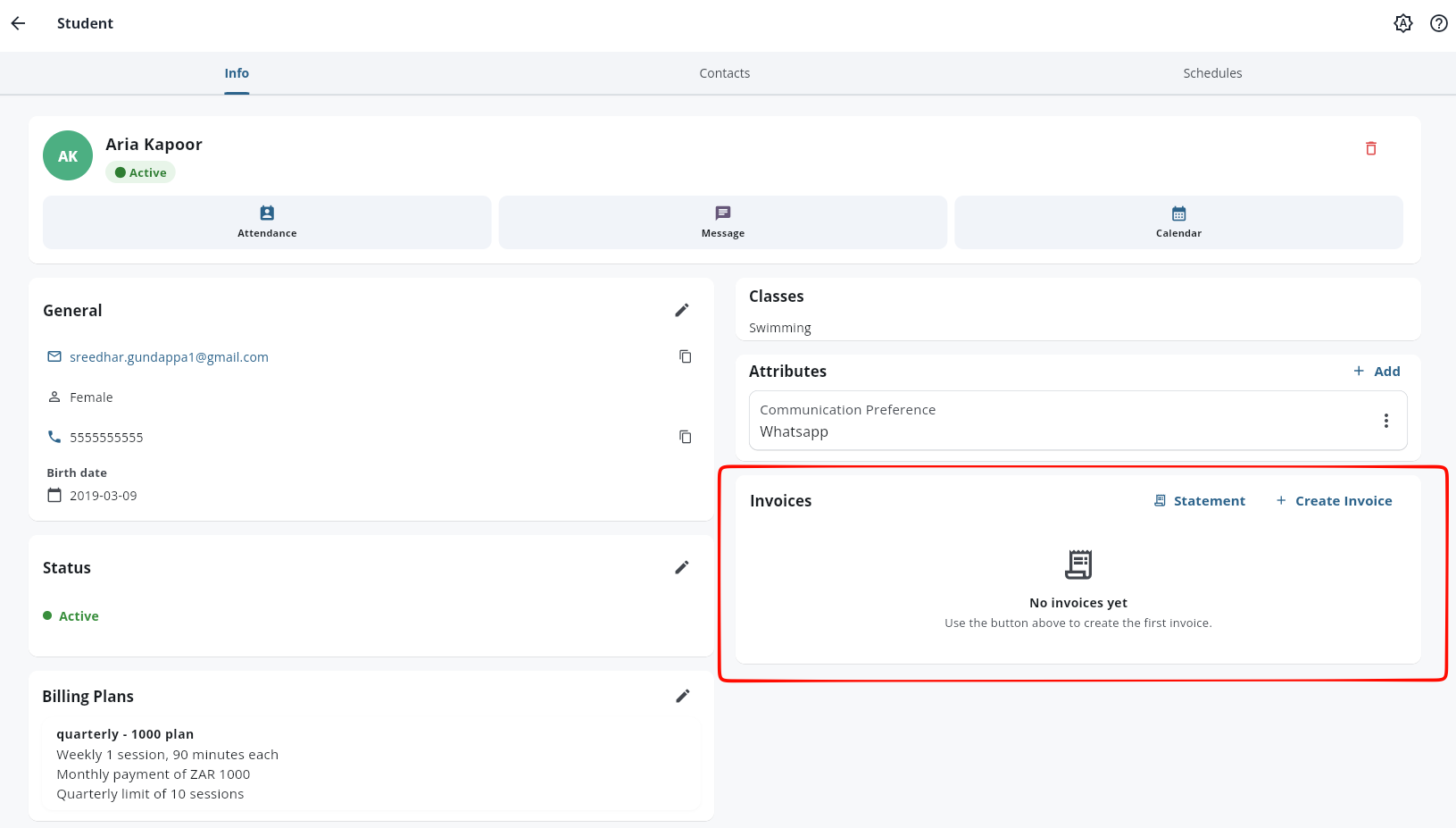
All invoicing for a student is managed from their profile. Scroll to the Invoices block to see a list of existing invoices and access the create and statement actions.
Creating a Draft Invoice
- Open the student's profile and scroll to the Invoices block.
- Tap the Create Invoice button.
Line Items
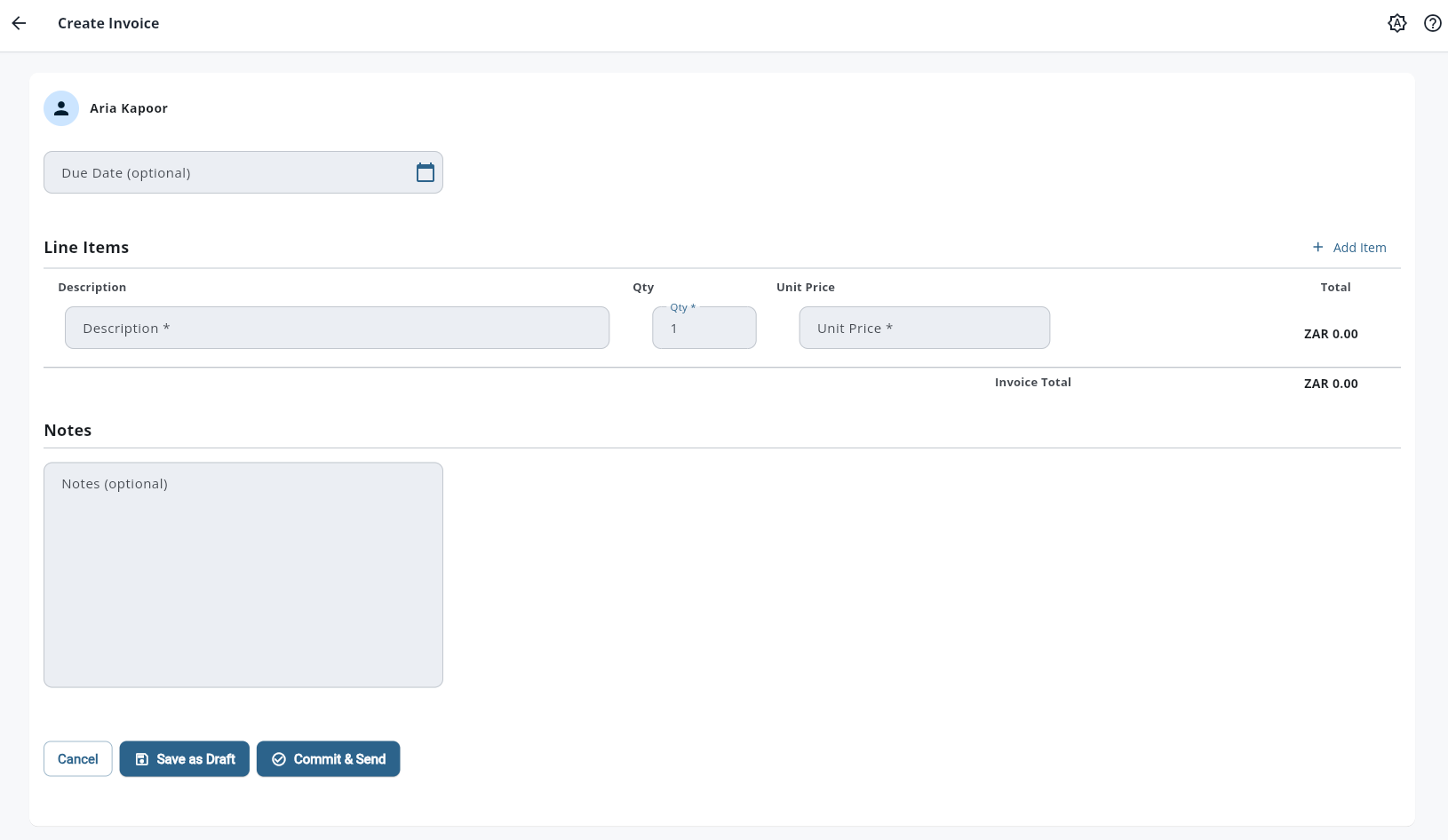
Each invoice requires at least one line item.
| Field | Required | Description |
|---|---|---|
| Description | Yes | What is being charged |
| Quantity | Yes | Number of units |
| Unit Price | Yes | Price per unit |
Tap Add Item to add more line items. The line total (quantity × unit price) is calculated automatically.
To remove a line item, tap the delete icon next to it. A minimum of one line item is required.
Invoice Details
| Field | Required | Description |
|---|---|---|
| Due Date | No | Date payment is due. Tap the calendar icon to select a date. |
| Notes | No | Optional message or instructions shown on the invoice |
The currency is taken from your group's ClassBuddy Invoicing configuration and cannot be changed here.
Saving
Two save options are available:
| Button | What it does |
|---|---|
| Save as Draft | Creates the invoice in DRAFT status. You can edit it before committing. |
| Commit & Send | Creates, commits, and emails the invoice to the student in one step. |
Editing a Draft Invoice
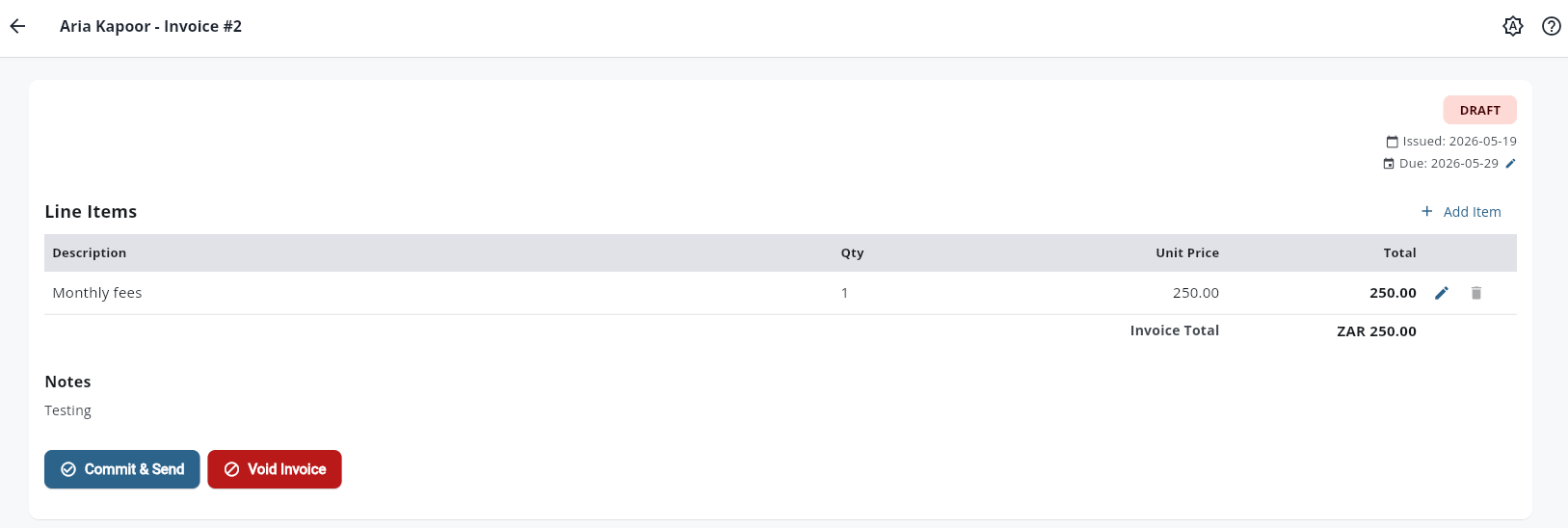
Only DRAFT invoices can be edited. Once committed, the invoice is locked.
- Open the invoice from the student's Invoices block.
- Tap the edit icon next to a line item to edit it inline.
- Update the description, quantity, or unit price and tap Save.
- To delete a line item, tap the delete icon. At least one item must remain.
- To add a new line item, tap Add Item at the bottom of the line items list.
Due date and notes can also be updated on a draft invoice.
Committing and Sending an Invoice
Committing an invoice finalises it — the status changes from DRAFT to UNPAID and it can no longer be edited.
From a draft invoice, tap Commit & Send.
The invoice is committed and an email is sent to the student automatically. The Email sent indicator in the invoice header updates to reflect this.
Committing requires the invoice:commit permission.
Sending an Invoice Email
For committed invoices where the email was not sent at commit time, or to resend the invoice:
- Open the invoice.
- Tap Send Email in the top action bar.
A success banner confirms the email was sent. The invoice header updates to show Email sent.
Recording a Payment
- Open the invoice.
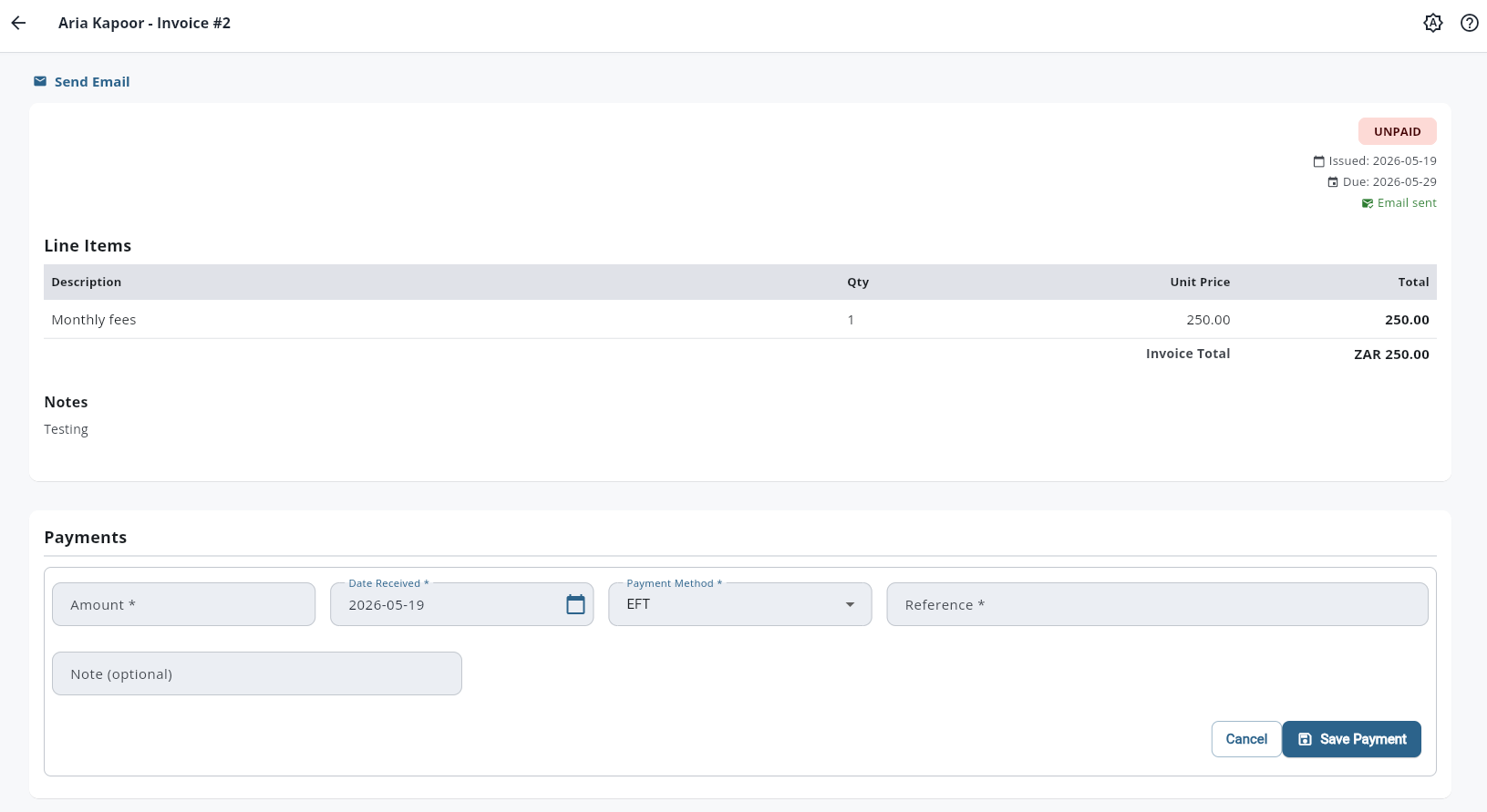
- Scroll to the Payment History section and tap Record Payment.
| Field | Required | Description |
|---|---|---|
| Amount | Yes | Amount received. Cannot exceed the remaining balance. |
| Date Received | Yes | Date the payment was received |
| Payment Method | Yes | EFT, Cash, or Card |
| Reference | Yes | Transaction reference or identifier |
| Note | No | Optional note about the payment |
Tap Save to record the payment. The invoice balance updates immediately.
Editing a Payment
Tap the edit icon next to any payment to update its method or note. Amount and date cannot be changed after recording.
Voiding a Payment
Tap the delete icon next to a payment and confirm to void it. The payment amount is returned to the invoice balance.
Student Statement
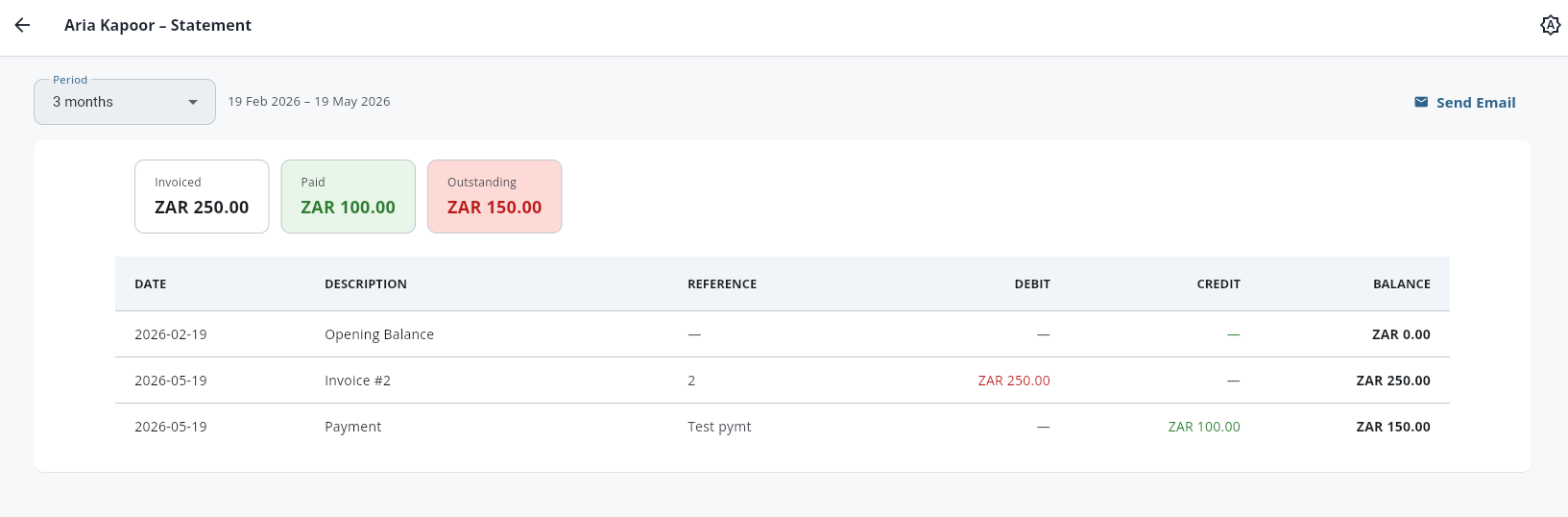
The statement gives an overview of a student's full invoicing activity — all invoices, payments, and the running balance — for a selected period.
- Open the student's profile and scroll to the Invoices block.
- Tap Statement.
Period Filter
Use the dropdown to select the statement period: 3, 6, 9, or 12 months. The statement updates immediately.
Summary Totals
Three totals are shown at the top:
| Total | Description |
|---|---|
| Invoiced | Total amount invoiced across the period |
| Paid | Total amount received |
| Outstanding | Remaining balance (Invoiced − Paid) |
Transaction List
Each row represents a transaction:
| Column | Description |
|---|---|
| Date | Transaction date |
| Description | "Invoice #[number]", "Payment", or "Opening Balance" |
| Reference | Invoice or payment reference |
| Debit | Invoice amounts charged |
| Credit | Payments received |
| Balance | Running balance after the transaction |
Sending the Statement by Email
Tap Send Email at the top of the statement page to email the statement to the student for the currently selected period.
A success banner confirms the email was sent.