Teachers
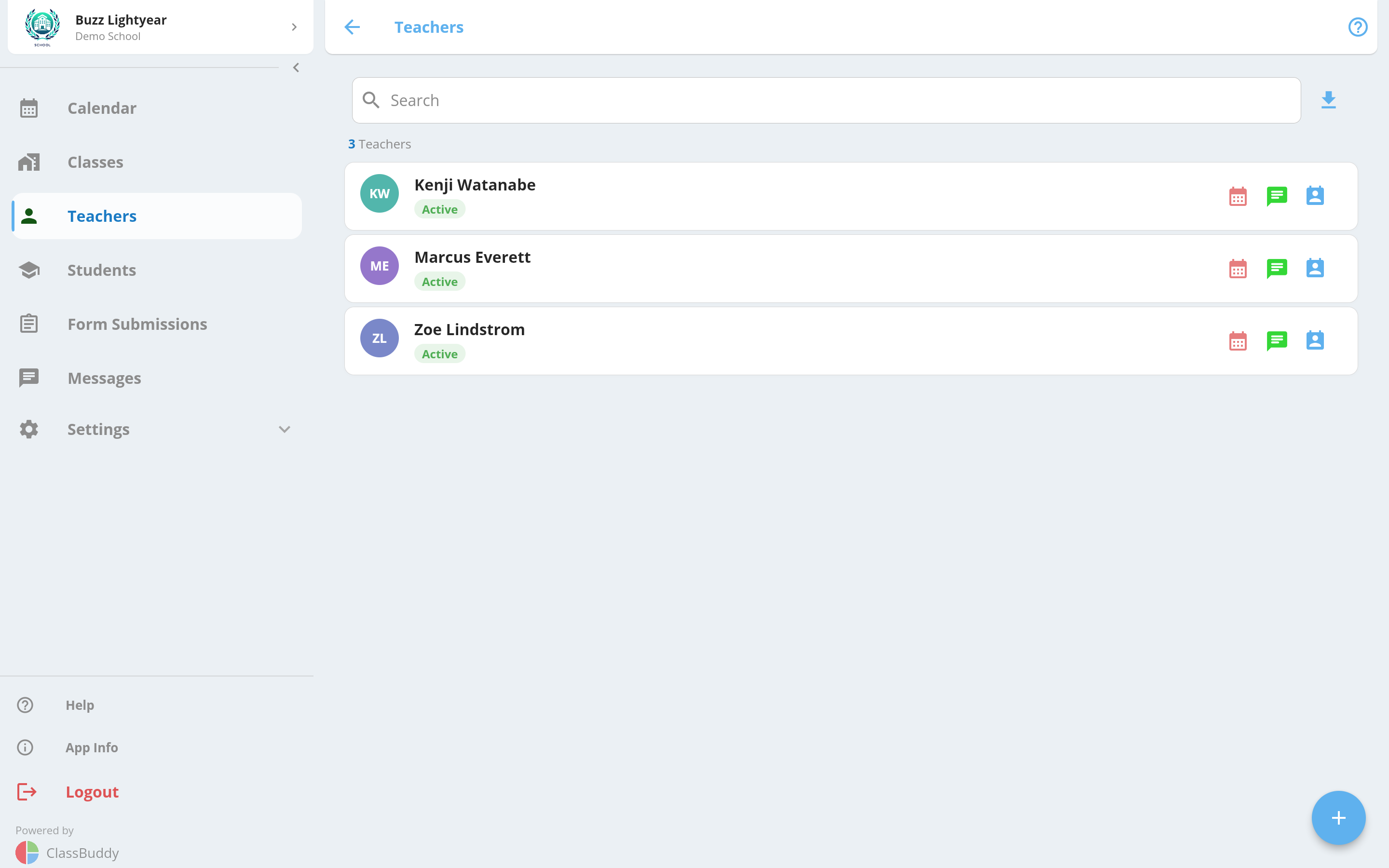
Teachers are staff members who can be assigned to classes and schedules. Once a teacher signs up on the ClassBuddy app, a school admin can link them to classes, assign roles, and configure their permissions.
Go to Menu > Teachers to view all teachers in your school.
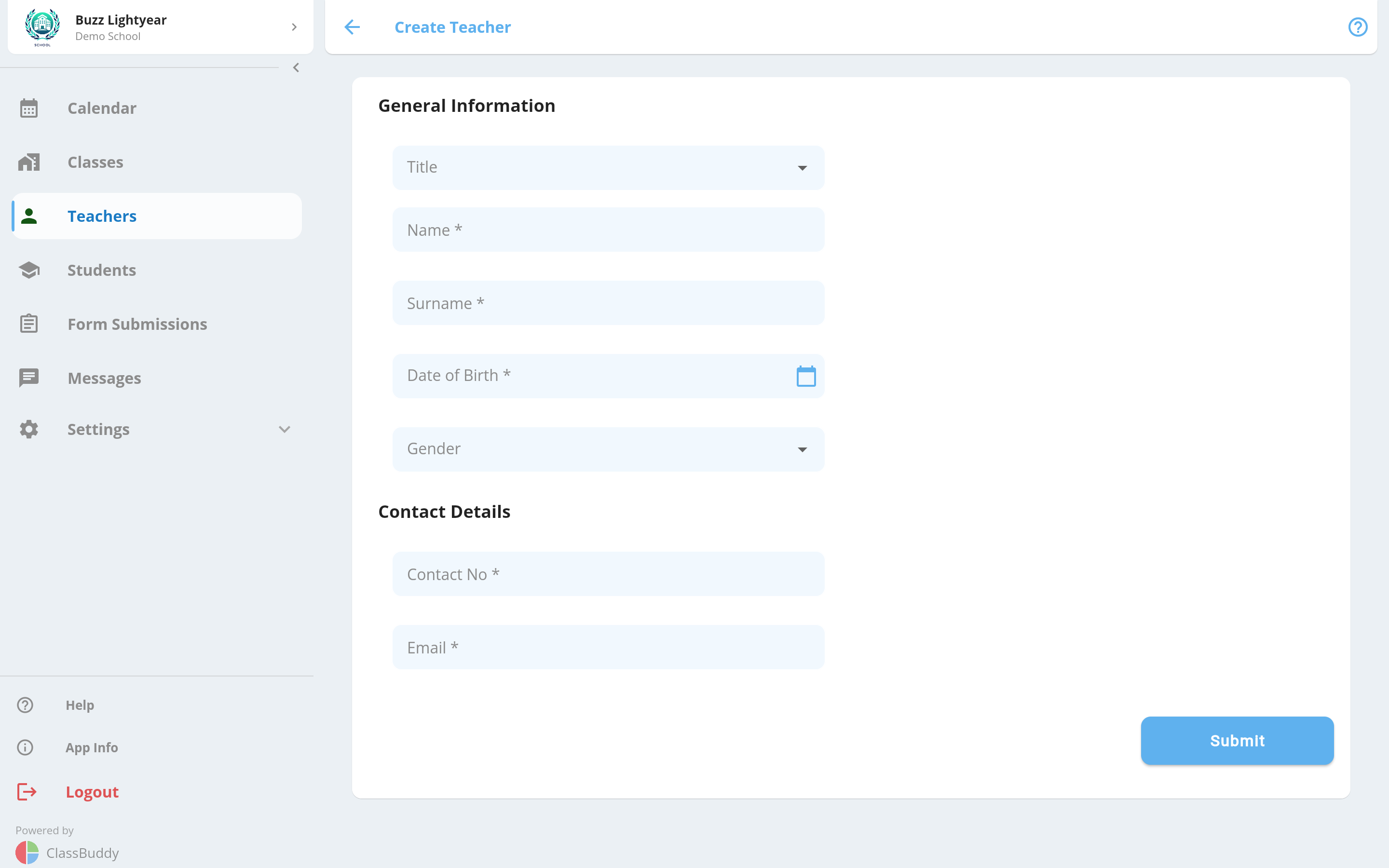
Create Teacher
Click the + button to create a new teacher record:
View Teacher
Click on any teacher to see their details.
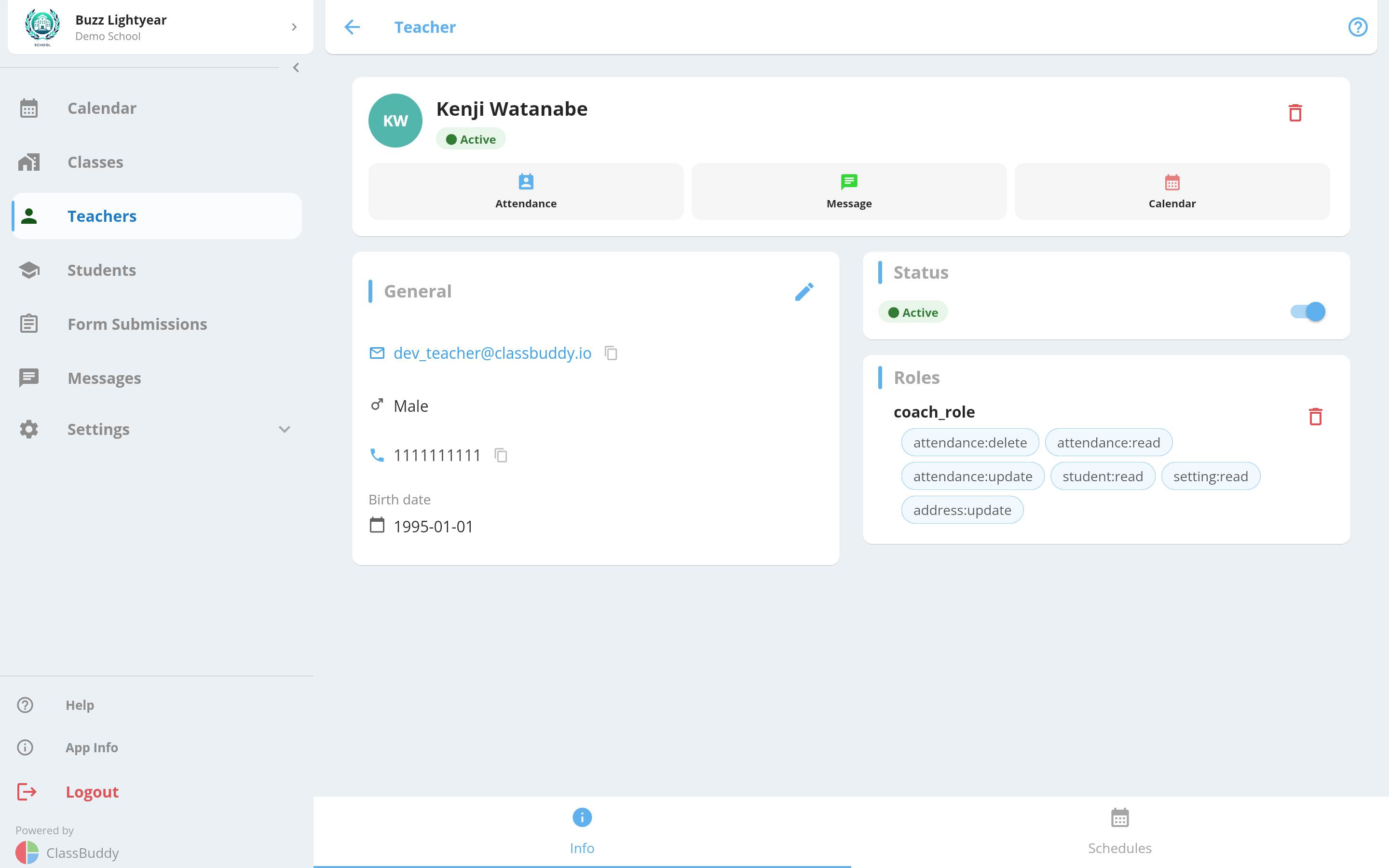
From the page, you can:
- View the teacher's schedule / attendance
- Edit teacher details
- Delete the teacher
- Message the teacher
Teacher Status
Toggle the Active? switch to activate or deactivate the teacher.
When you deactivate a teacher, a confirmation dialog will warn you that the teacher will be removed from all upcoming schedules. Confirm before proceeding.
Reactivating a teacher does not automatically re-add them to any schedules — you will need to reassign them manually.
Click View Attendance to see the teacher's attendance history, similar to the student attendance view. See Attendance for details.
Teacher Roles
The Roles block shows all roles assigned to the teacher. Roles control what the teacher can see and do within the app.
To assign or remove roles, go to Settings > Roles. See Roles & Permissions for details on available permissions.
View Teacher Schedules
Go to the Schedules tab on a teacher's profile to see all schedules they are assigned to. Use the pencil icon to edit a schedule assignment.
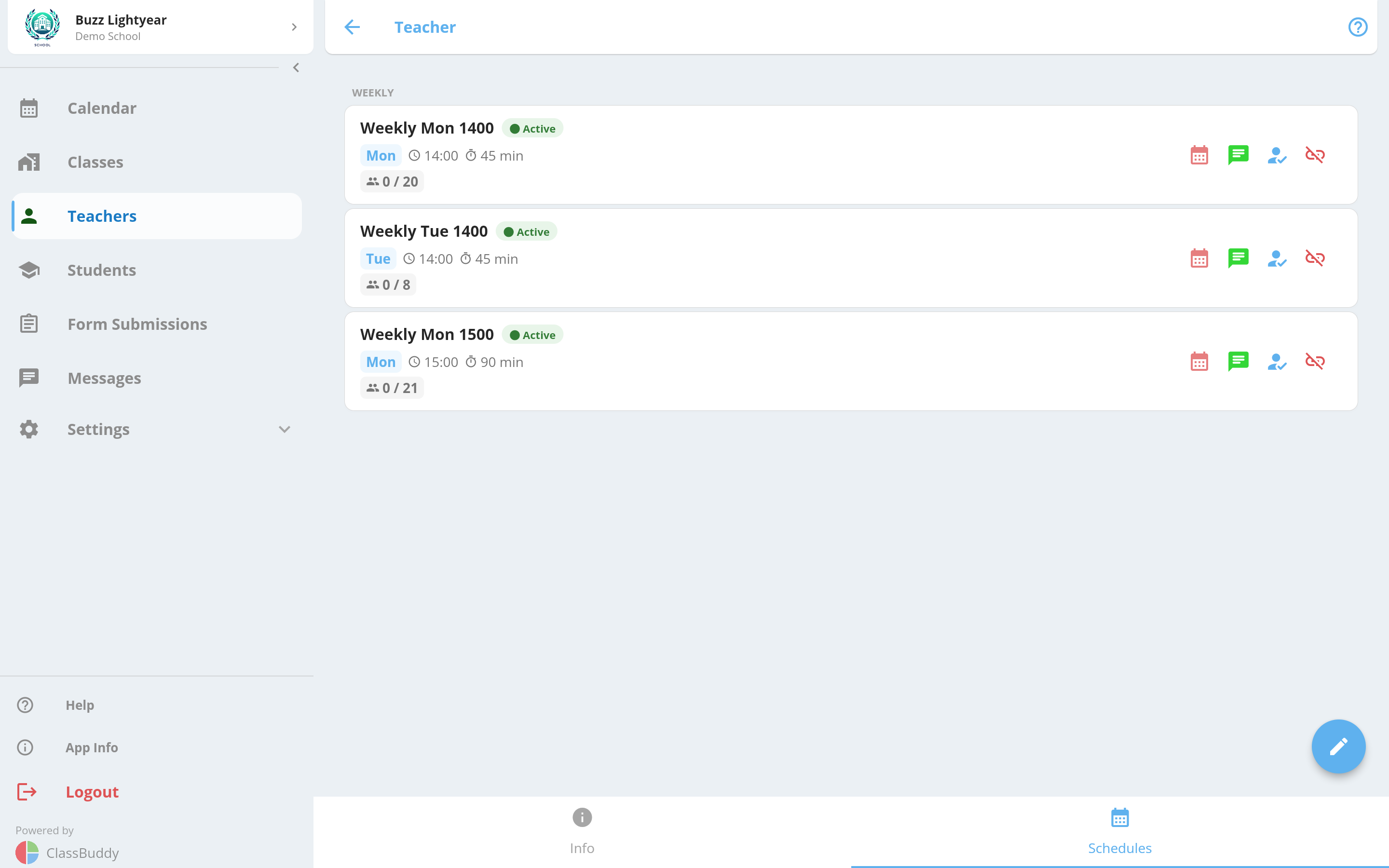
A teacher can also be added to a class via Class > Teachers tab, or to a specific schedule via Schedule > Teachers tab.