School Info
Go to Settings > School Page to view and manage your school's information.
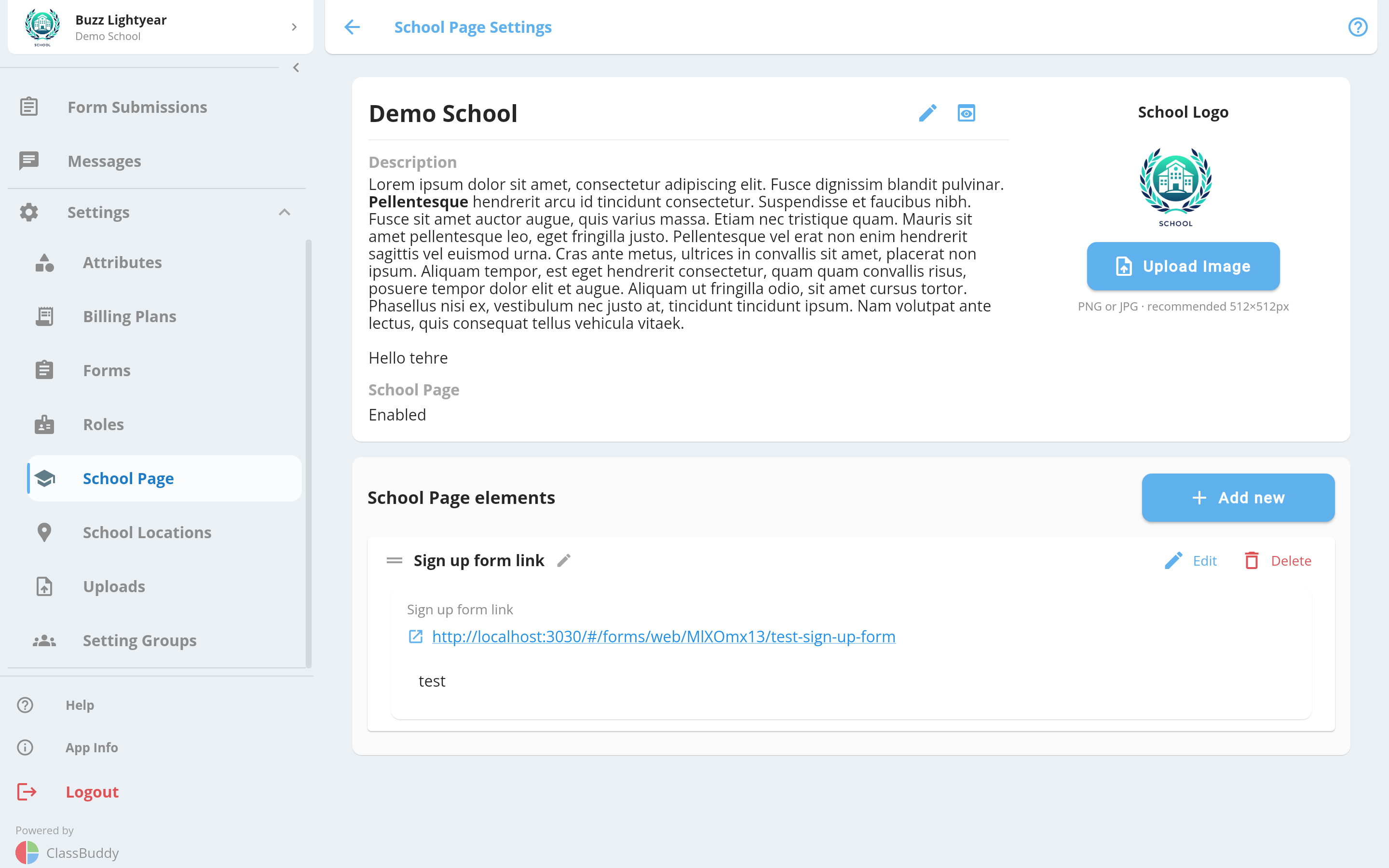
The page shows:
- School name and description
- School logo
- Whether the public school page is enabled
- Custom school page attributes
Editing school information requires the school_page:update permission. Managing school page attributes requires school_page:write. See Roles & Permissions for details.
Edit School Info
From the menu (three dots), tap Edit to update the school's basic details.
| Field | Description |
|---|---|
| School Name | Your school's display name |
| Description | A rich-text description shown on the public school page |
| Enable School Page | Toggle on to make your school's page publicly visible |
Tap Save to apply changes or Cancel to discard them.
Upload a Logo
On the school page, tap Upload Image to set or replace your school's logo.
- Accepted formats: PNG or JPG
- Recommended size: 512 × 512 px
The logo appears on your school page and in form headers shown to students and parents.
Preview the Public School Page
From the menu (three dots), tap Preview icon to see how your school page looks to the public.
You can also find your school via Browse Schools on the app login page and tap View Profile to see the public view.
School Page Attributes
School page attributes are custom fields that appear on your public school page — for example, contact details, social links, or a student-teacher ratio. Attributes marked as private are only visible to admins and are hidden from the public page.
Add an Attribute
Tap Add new to create a new attribute. The process has two steps:
- Define the attribute — enter a display name, choose a data type, and optionally toggle Is a list to allow multiple values.
- Set the value — enter the value for the chosen data type.
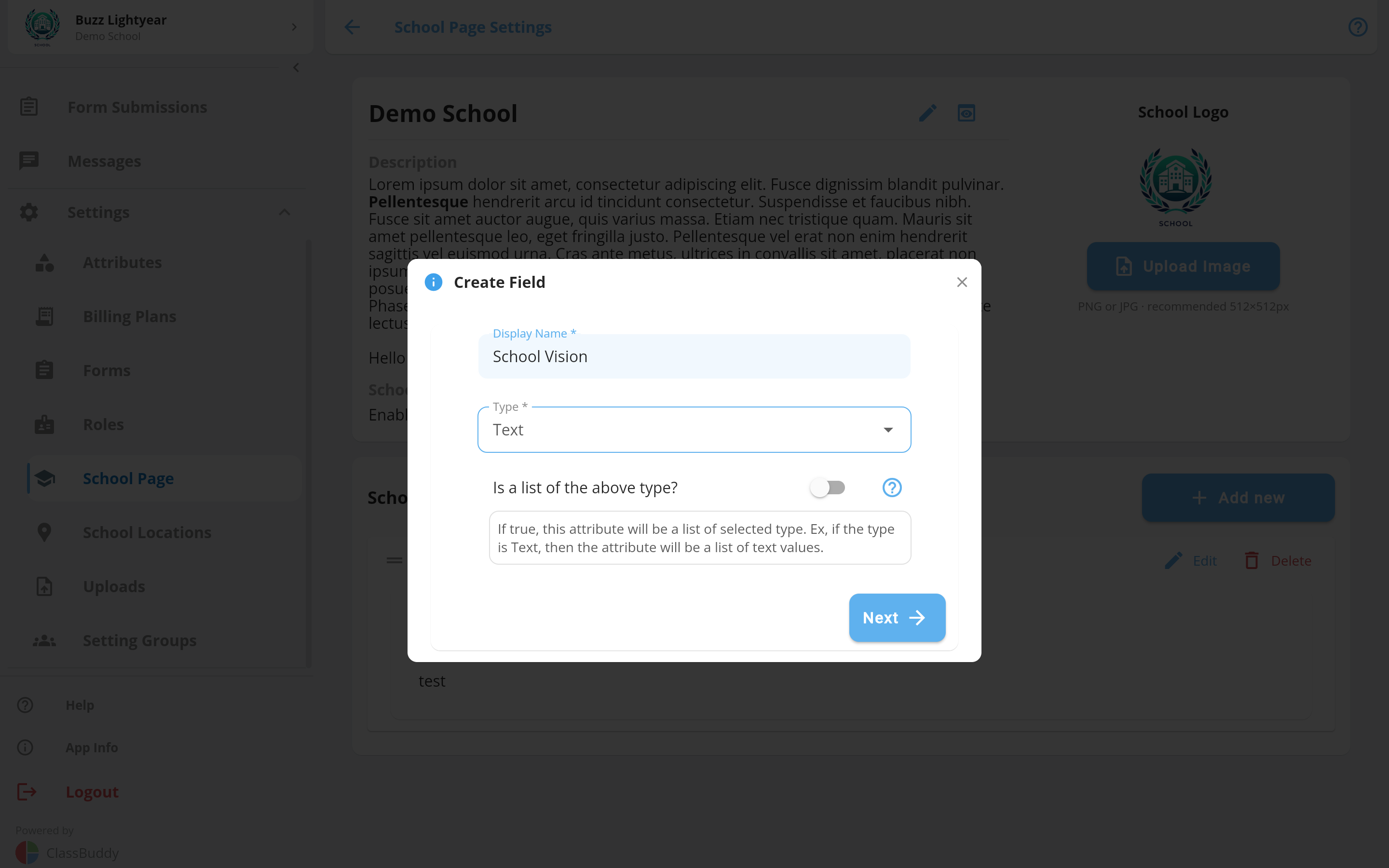
Supported data types:
| Type | Use for |
|---|---|
| Text | Short text like a phone number or address |
| URL | A website or social media link |
| Number | Numeric values like student count or ratio |
| Boolean | A yes/no value |
| Number Range | A range like "Ages 5–18" |
Edit an Attribute
Tap Edit on any attribute to update its value or toggle its privacy setting.
You can also tap the pencil icon next to an attribute's display name to rename it inline.
Delete an Attribute
Tap Delete on any attribute and confirm. Deletion is permanent.
Reorder Attributes
Use the drag handle (≡) on the left of each attribute to drag it to a new position. Save Order and Cancel buttons appear at the top while you are reordering.