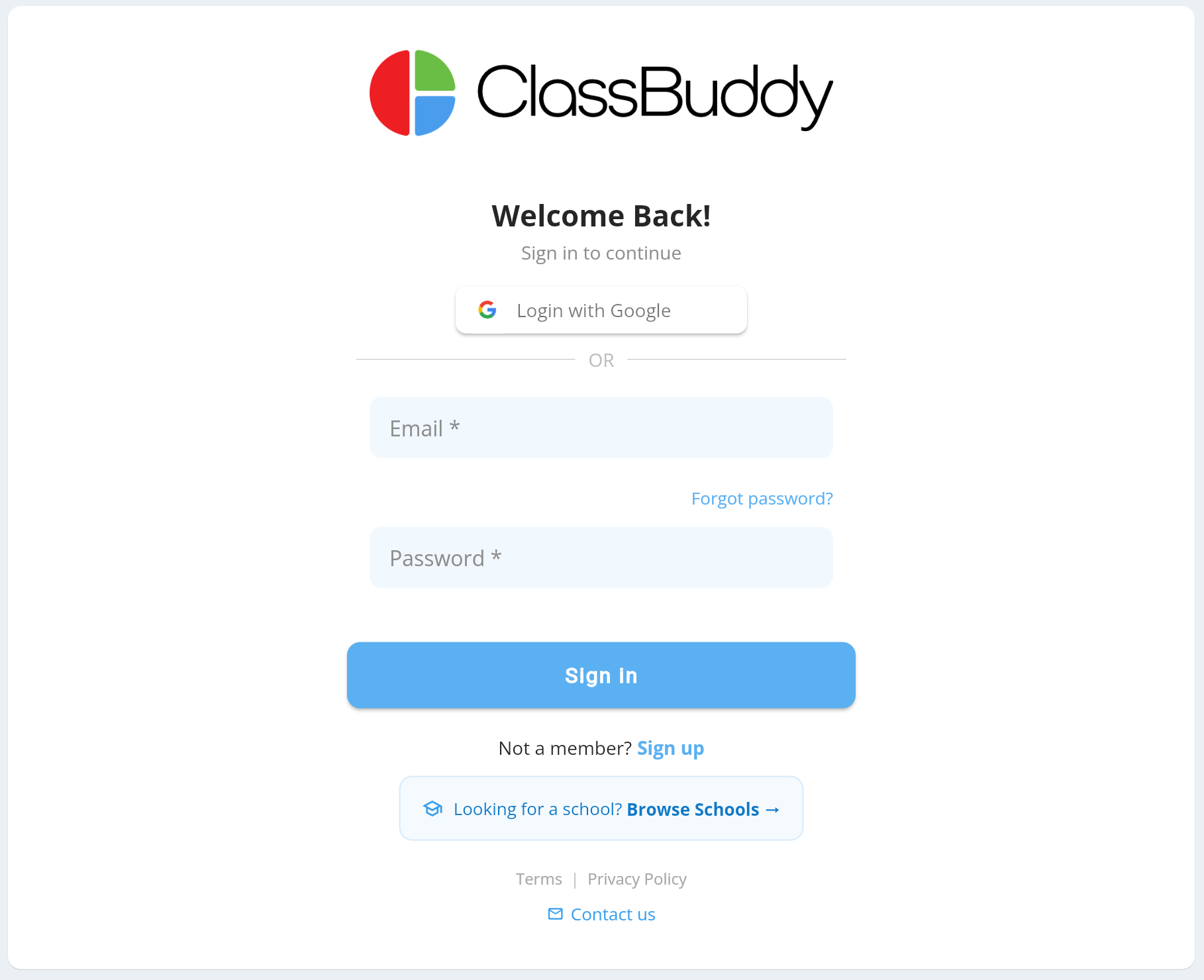
Signing Up & Signing In
Get the app


You can also access ClassBuddy on the web at https://web.classbuddy.io
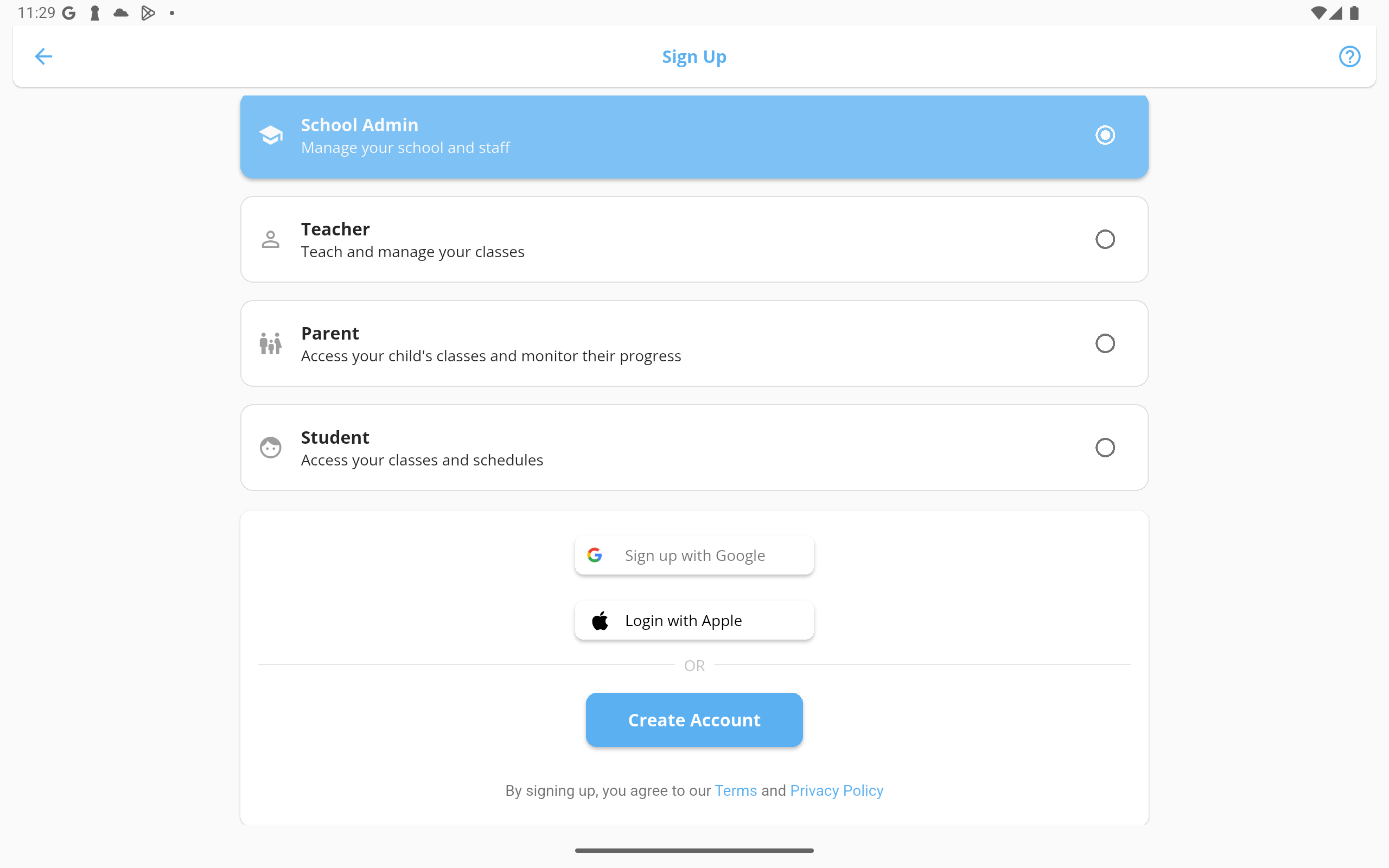
Account Types
When signing up, choose the account type that matches your role:
| Account Type | Who it's for |
|---|---|
| School | School administrators who manage classes, students, teachers, billing, and settings |
| Teacher | Staff members who are assigned to classes and schedules. Access is controlled by the permissions a school admin assigns to their role. |
| Parent | Parents or guardians who track their child's attendance and communicate with the school |
| Student | Students who can view their own schedule and attendance |
Signing Up
Open the app and tap Sign Up on the login screen.
Step 1 — Choose your account type
Select the account type that matches your role.
Step 2 — Create your account
Choose how to create your account:
Option A — Sign up with Google or Apple
Tap Continue with Google or Continue with Apple. You'll be taken through the provider's sign-in flow, then returned to ClassBuddy to verify your email.
Option B — Sign up with email and password
Fill in the form with your details:
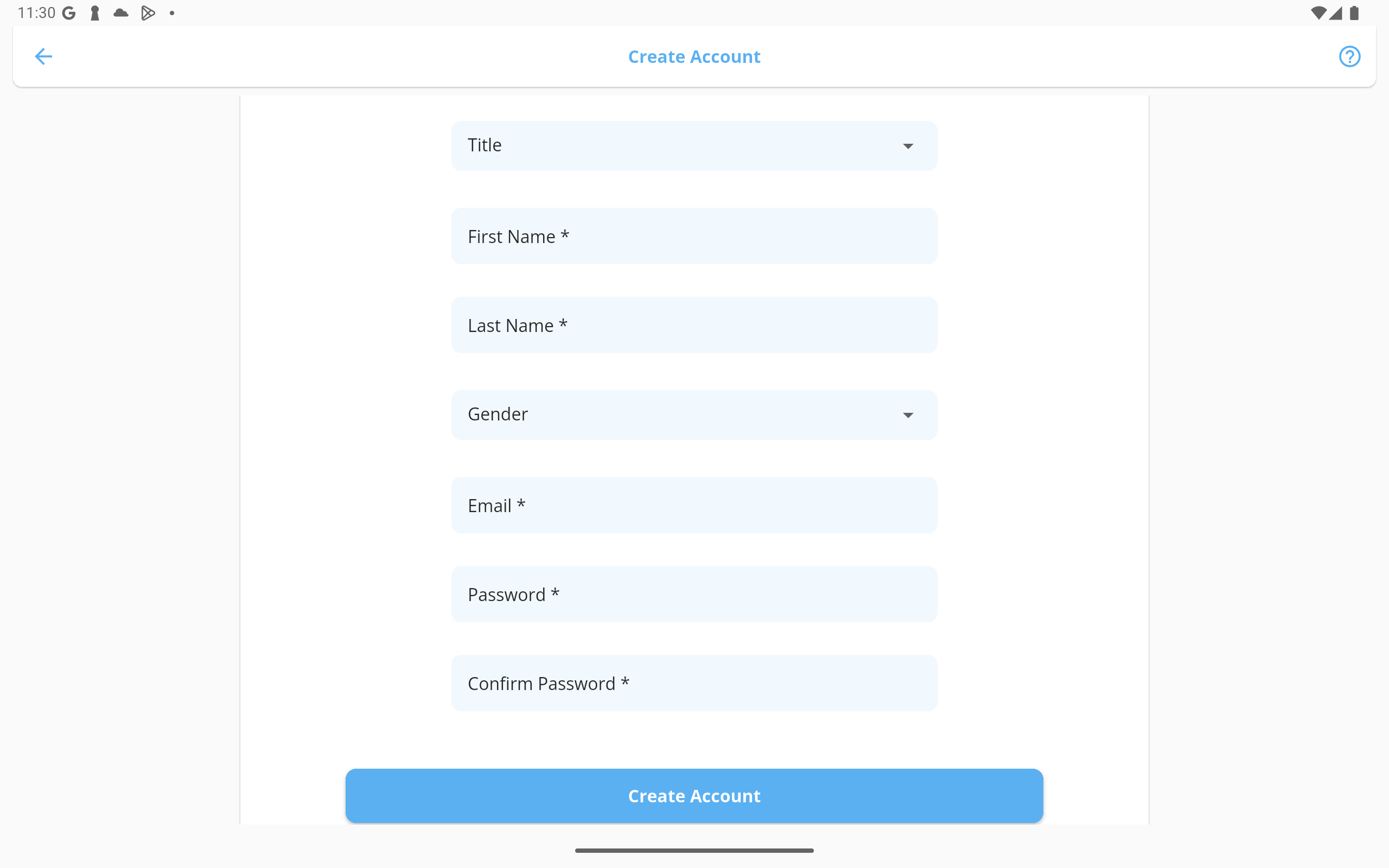
| Field | Required |
|---|---|
| Title | No |
| First Name | Yes |
| Last Name | Yes |
| Gender | No |
| Yes | |
| Password | Yes |
| Confirm Password | Yes |
Step 3 — Verify your email
A 5-digit verification code is sent to your email address. Enter it on the verification screen.
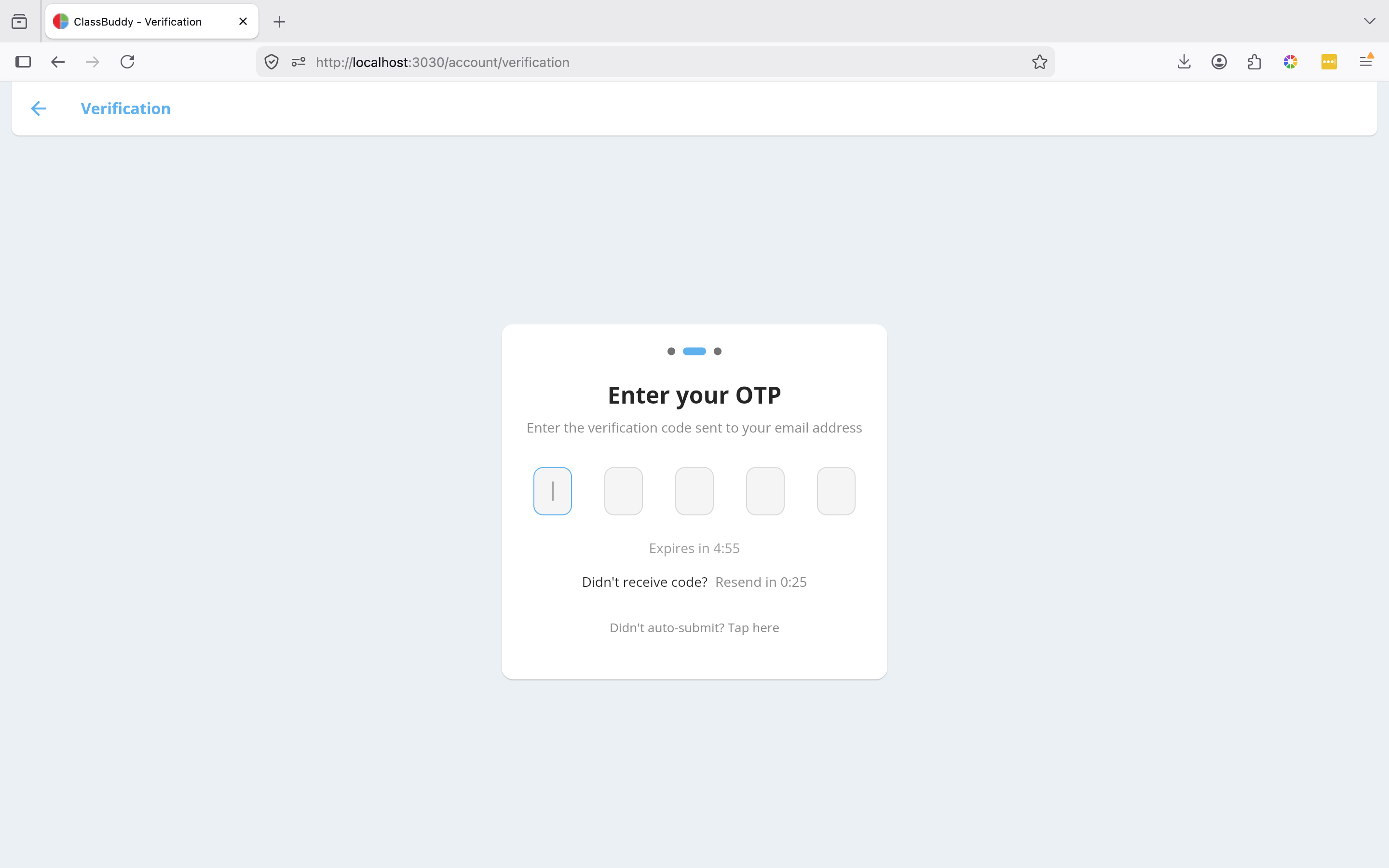
The code expires after 5 minutes. If you don't receive it, wait 30 seconds and tap Resend OTP. Check your spam folder if it still doesn't arrive.
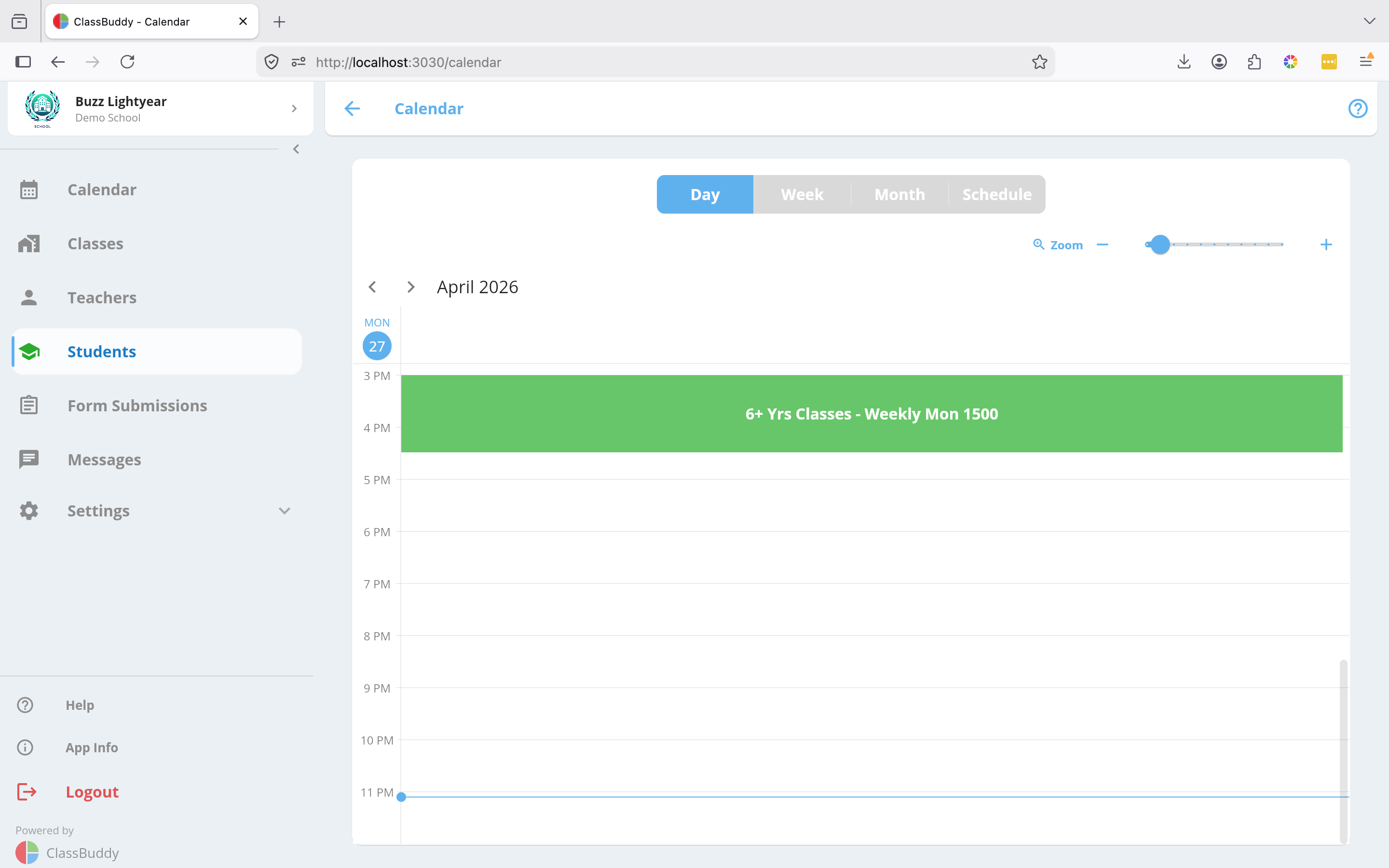
Once verified, you'll be taken to the app.
Signing In
If you already have an account, open the app and enter your email and password on the login screen, then tap Sign In.
You can also tap Continue with Google or Continue with Apple if you signed up with a provider.
Forgot Password
If you've forgotten your password, use the 3-step reset flow:
Step 1 — Request a reset code
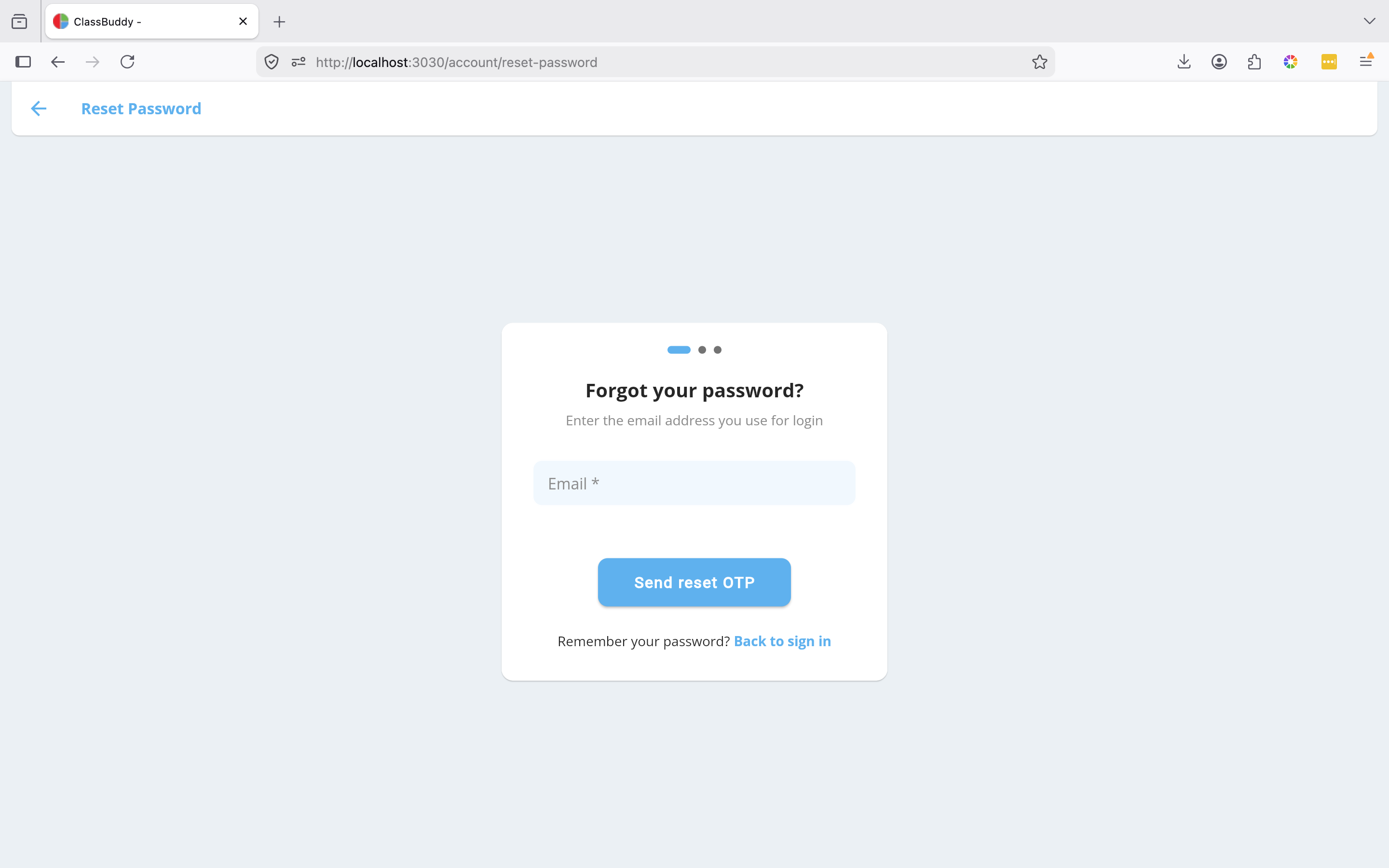
Tap Forgot password? on the login screen. Enter your email address and tap Send reset OTP.
Step 2 — Enter the verification code
A 5-digit code is sent to your email. Enter it on the verification screen. The code expires after 5 minutes; tap Resend OTP after 30 seconds if needed.
Step 3 — Set a new password
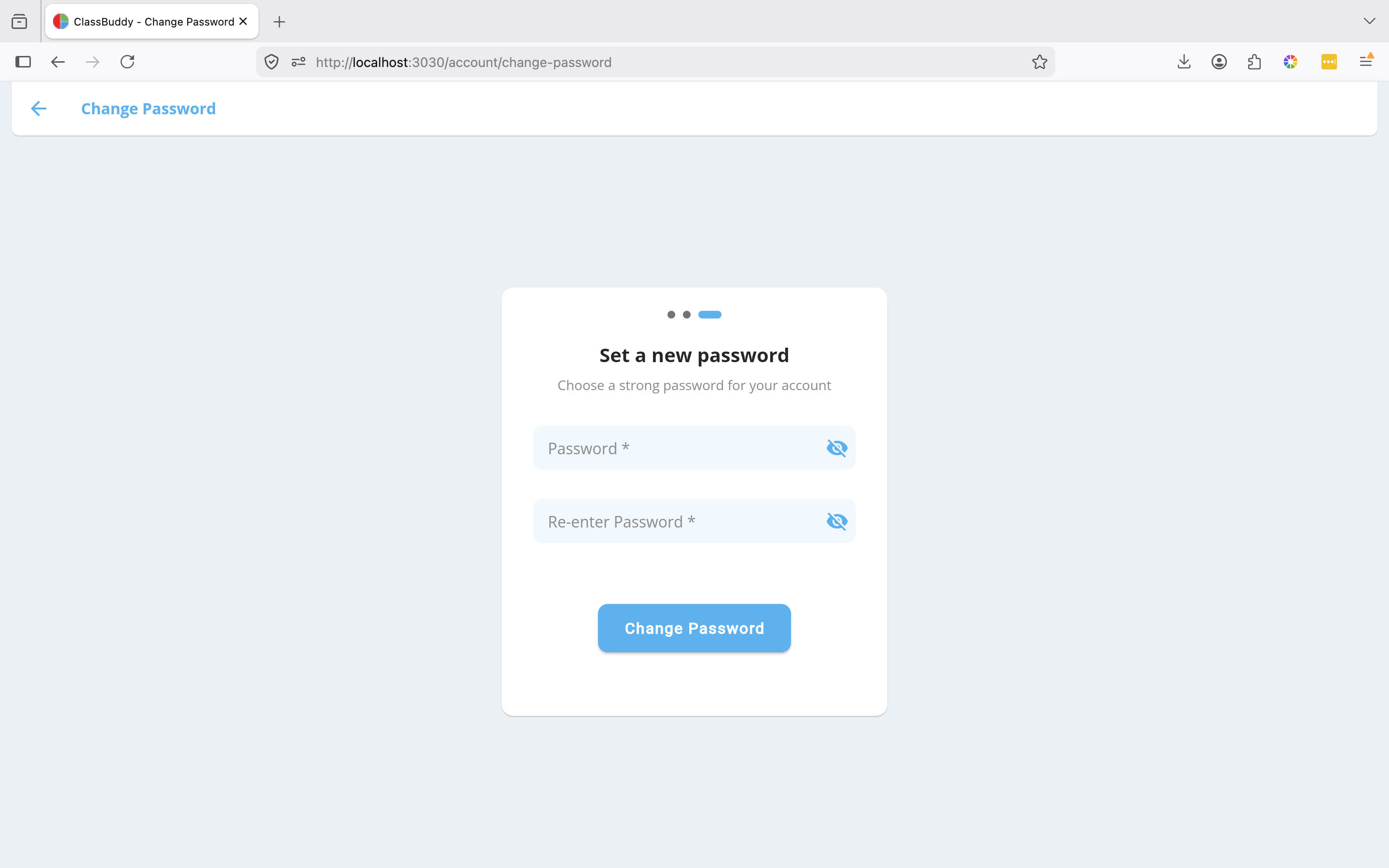
Enter your new password, confirm it, and tap Change Password. You'll be returned to the login screen.
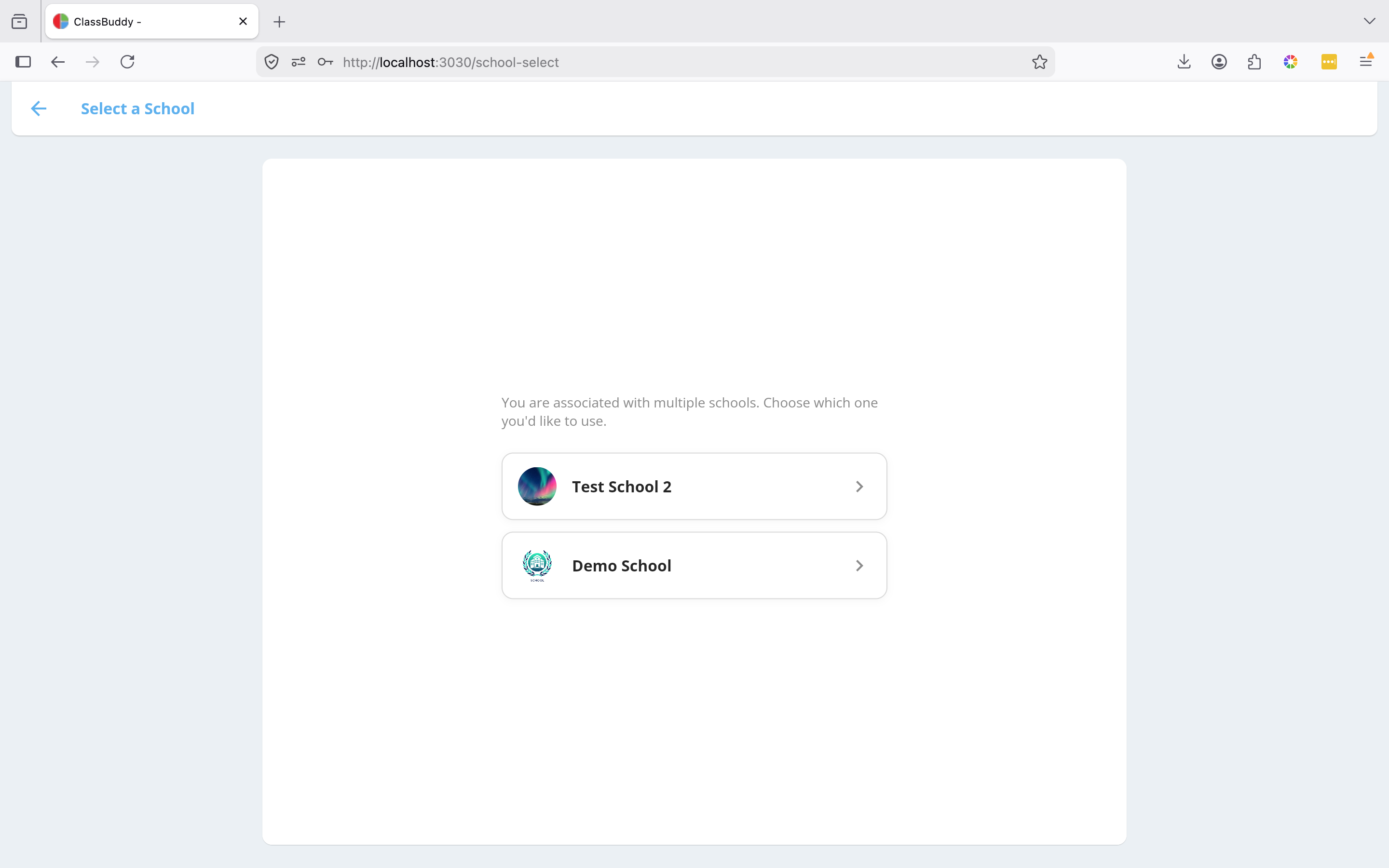
Multiple Schools
If your account is linked to more than one school, you'll be shown a school selection screen after signing in. Tap the school you want to work in. You can switch schools later from your profile.